LISTA DE GUIAS
As pessoas geralmente negligenciam as mensagens de texto como um dos itens que fazem backup, mas elas podem conter diálogos importantes, detalhes de contato, fotos e informações que você ainda pode precisar no futuro. Perder o celular, comprar um novo ou apagar uma mensagem acidentalmente são alguns dos problemas que você pode enfrentar. Ter um backup pronto tornará desnecessário passar por todo o processo de recuperação dos dados. Muitos já encontraram uma maneira de fazer backup de mensagens de texto no Android Você pode fazer backups manuais ou automáticos na nuvem, ou armazená-los no seu computador, se preferir. Neste artigo, descrevi vários métodos de backup que podem ser considerados fáceis e convenientes, desde backups automáticos na nuvem até o salvamento das suas mensagens diretamente no seu PC ou mesmo a exportação delas para que você possa acessá-las rapidamente.
O Android salva automaticamente seus SMS e MMS na sua Conta do Google, então você não precisa ficar salvando as conversas manualmente. Esse método de backup de mensagens SMS no Android é especialmente útil se você for trocar de aparelho.
Como configurá-lo
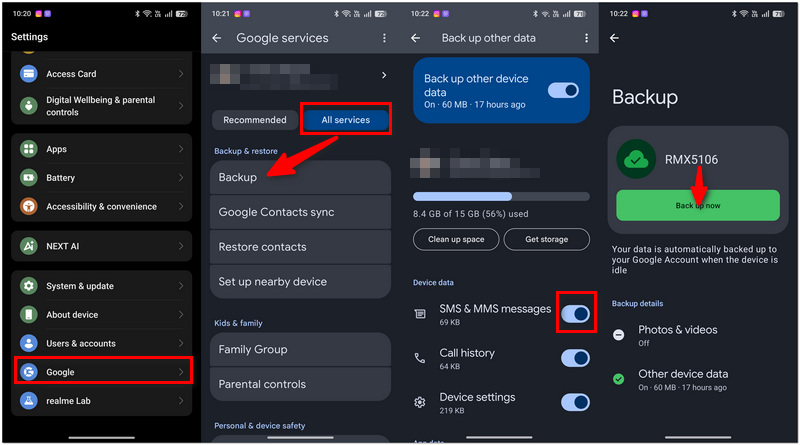
Ao comprar um novo celular Android, recomenda-se usar a mesma Conta Google para fazer login e também optar por restaurar os dados de backup anteriores. Certos tipos de dados, como mensagens, só podem ser recuperados na configuração inicial do celular ou após uma restauração de fábrica.
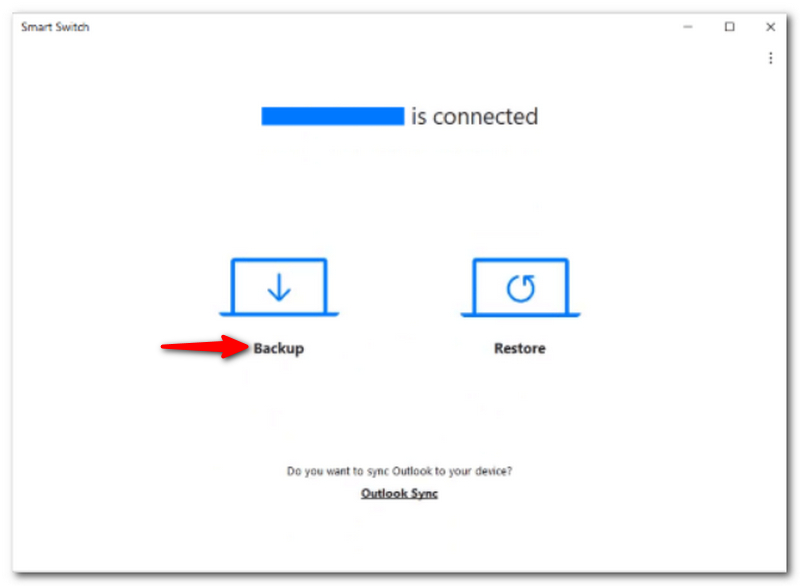
Suas mensagens e outros dados em celulares Samsung Galaxy podem ser preservados usando o Smart Switch, o que é muito conveniente, principalmente quando você deseja salvá-los em um local diferente do próprio celular. Você pode fazer backups em um PC com Windows, Mac, cartão SD ou qualquer opção de armazenamento USB, o que é útil quando você pretende ter suas mensagens salvas de forma independente.
Se você está procurando uma maneira eficiente e fácil de fazer backup de mensagens de texto do Android, veja abaixo os Passos que você precisa seguir:
Fazer backup para um PC ou Mac
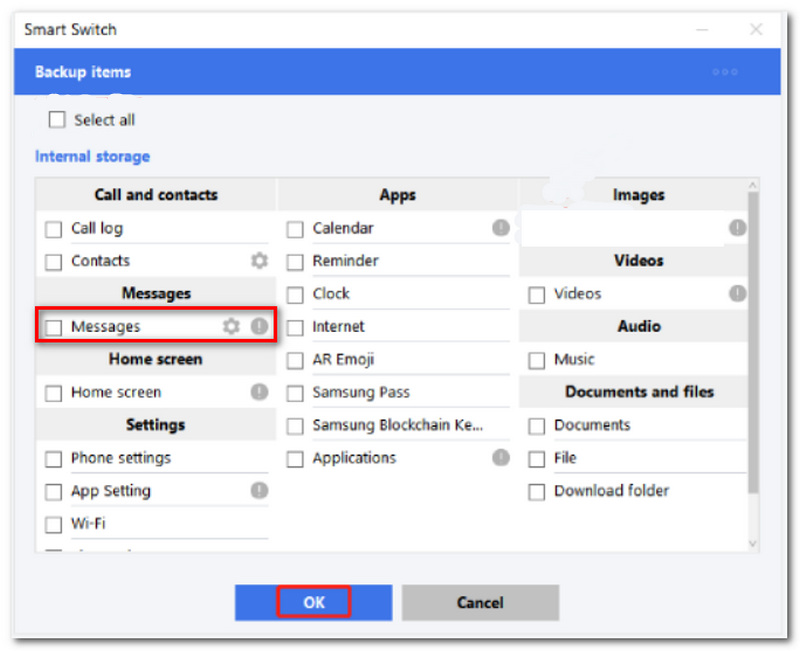
Faça backup em um cartão SD ou armazenamento USB.
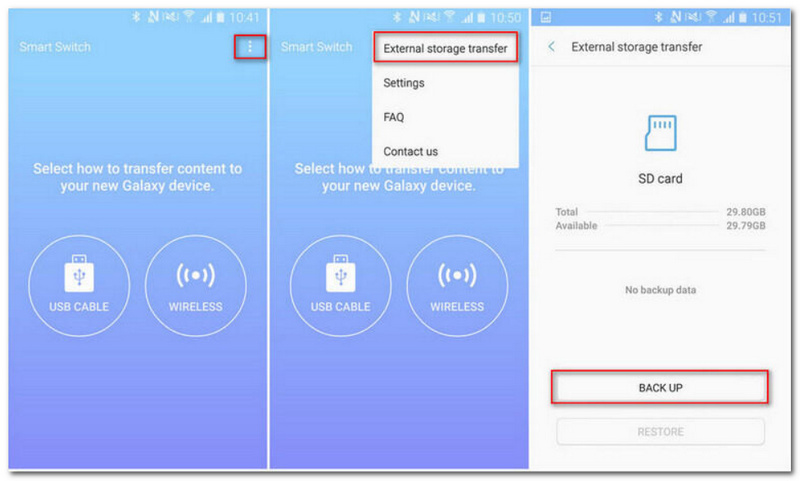
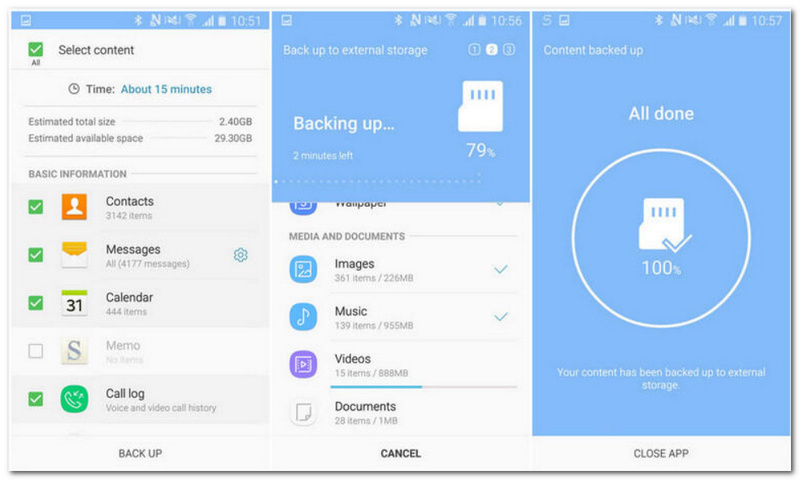
Embora alguns modelos Galaxy venham com um slot para cartão microSD, o armazenamento USB pode ser usado, principalmente se o seu telefone não tiver um slot para cartão SD.
O SMS Backup & Restore é uma ótima opção se você prefere ter controle total sobre onde suas mensagens são salvas. Ele cria um backup XML das suas mensagens SMS e MMS, e você pode salvar o arquivo no Google Drive, Dropbox, OneDrive ou enviá-lo por e-mail. É até possível configurar seu dispositivo para fazer backups automáticos de acordo com sua programação.
Para fazer backup de mensagens de texto do Android, siga estes Passos:
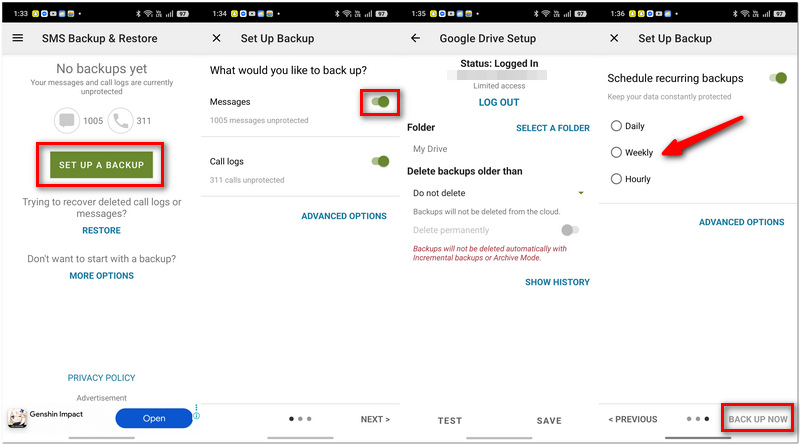
Os arquivos XML são copiados por meio deste aplicativo e também ficam disponíveis para os usuários através do visualizador online em computadores.
Se você deseja ter mensagens do Android no seu computador, Recuperação de dados Android Aiseesoft FoneLab É uma ferramenta perfeita para isso. Não só porque permite fazer backup e gerenciar dados do Android, mas também porque funciona com seus outros arquivos, possibilitando a criação de backups realmente completos do seu telefone de uma só vez.
Para mensagens de texto com backup no Android, sua dúvida pode ser respondida! Se você usar esse método, terá uma cópia digital das suas conversas importantes.
Downloads
Recuperação de dados do Aiseesoft Android
 100% seguro. Sem anúncios.
100% seguro. Sem anúncios.
Como fazer backup de SMS do Android para o PC com o Aiseesoft FoneLab para recuperação de dados do Android
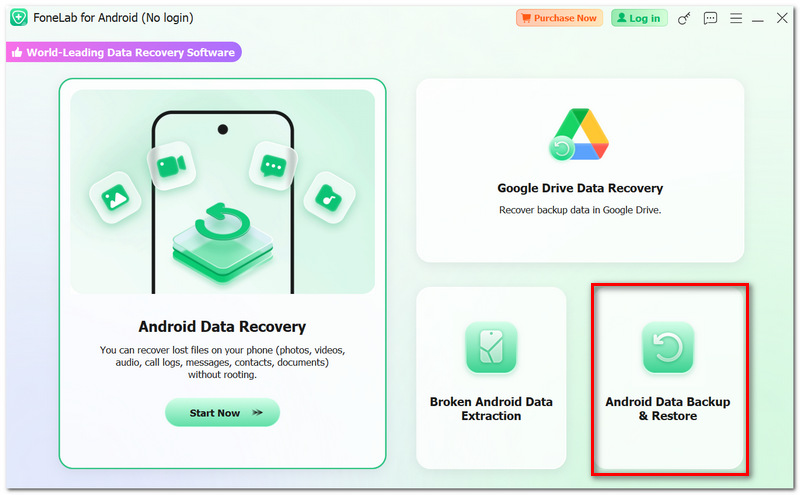
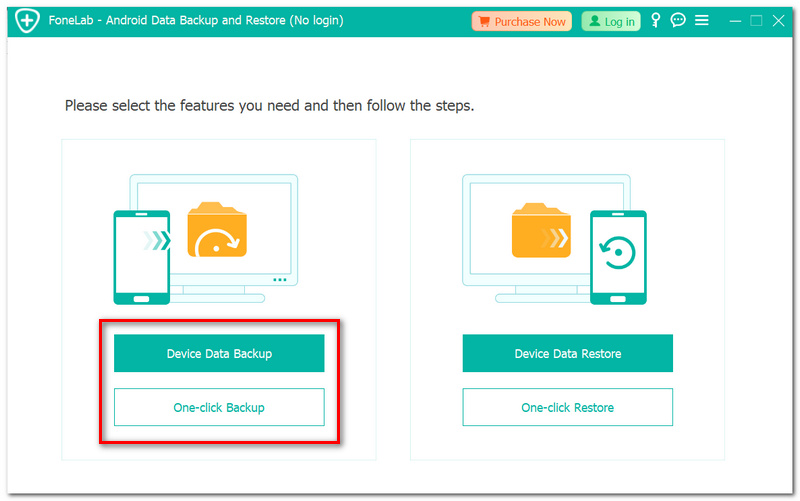
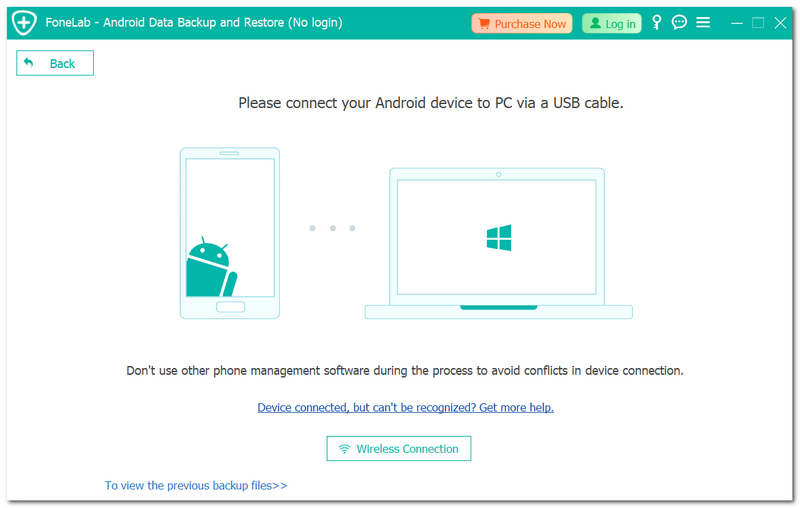
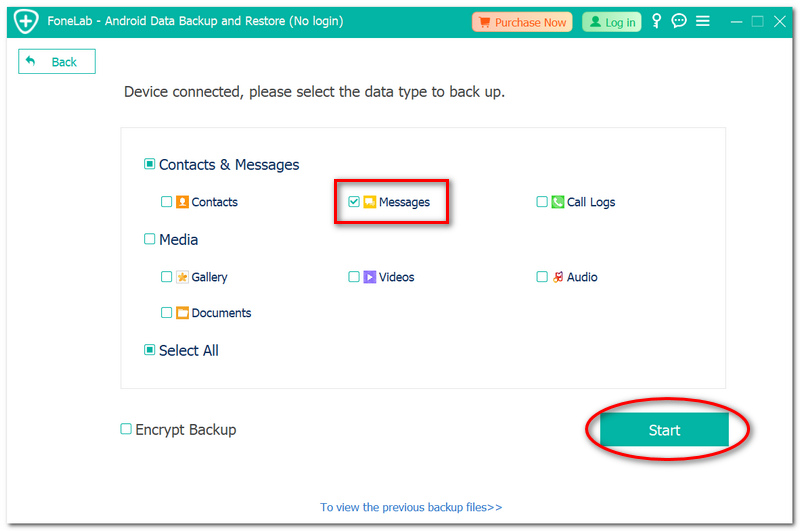
O Aiseesoft FoneLab para Android já possui ferramentas de backup e restauração para computadores Android. Seu conjunto atual de produtos para Android também inclui Backup do WhatsApp e soluções de transferência.
Se você só tem algumas conversas importantes que deseja guardar, enviá-las por e-mail seria uma solução fácil. Embora não seja uma solução completa. Backup de SMSIsso lhe daria uma cópia que poderia ser acessada se necessário.
Para fazer backup de mensagens de texto em um dispositivo Android, um método simples é selecionar uma única mensagem ou uma conversa e encaminhá-la por e-mail usando o aplicativo Mensagens do Google.
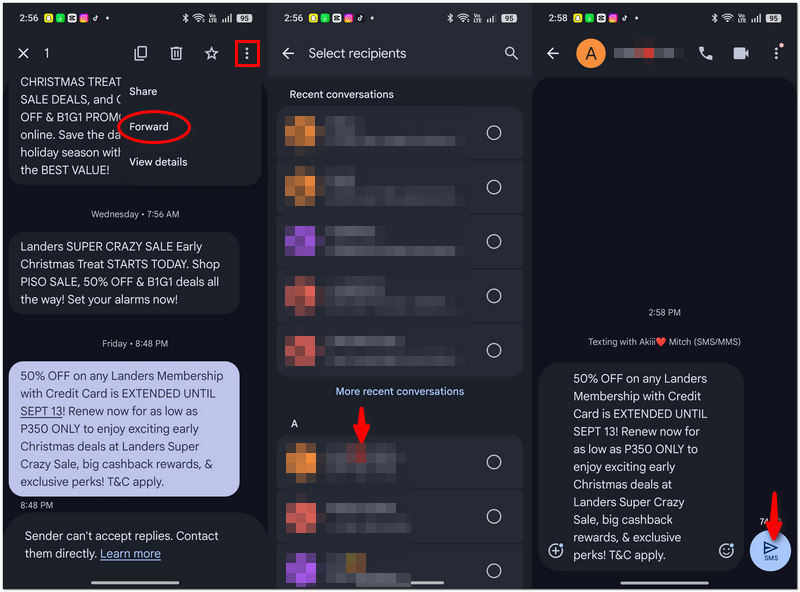
É mais eficaz quando apenas alguns momentos especiais são armazenados, e não a conversa inteira.
Meu backup terá mensagens de ambos os meus cartões dual-SIM?
Depende do modelo do telefone, do aplicativo de mensagens e do método de backup. Usuários de Dual SIM devem verificar todas as conversas antes de trocar de aparelho, em vez de presumir que todas as conversas foram preservadas.
Posso transferir um backup de SMS de uma conta do Google para outra?
Na maioria dos casos, não é possível. O backup em uma Conta do Google é válido apenas para a Conta do Google que o criou. Transferir conversas entre contas diferentes, a partir de um backup exportado, pode ser uma opção melhor.
As mensagens SMS arquivadas exigem um backup separado?
Não. Arquivar uma conversa geralmente apenas oculta a mensagem da visualização principal do seu aplicativo de mensagens. É o seu método de backup que determinará se o chat será salvo ou não. Ele ainda estará arquivado, mas não salvo.
Conclusão
Ao fazer backup das suas conversas por mensagens de texto, você garante que, mesmo se perder o celular, trocar de aparelho ou se uma conversa importante for apagada acidentalmente, suas mensagens ainda estarão lá. Você pode escolher entre backups automáticos na nuvem, uma cópia no computador ou um aplicativo que faça backups regulares. O importante é escolher a opção que melhor se adapta às suas necessidades e mantê-la. Com qualquer uma dessas soluções, Como fazer backup de mensagens SMS no Android Não será mais uma tarefa complexa, e você poderá desfrutar de conversas importantes com acesso seguro a qualquer momento.
 Os 10 principais aplicativos de agendamento de mensagens de texto para telefones Android e iPhone
Aqui está uma coleção dos 10 principais aplicativos agendadores de mensagens de texto disponíveis para dispositivos iPhone e Android para ajudá-lo a enviar mensagens de texto (SMS) ou MMS de acordo com sua programação.
 Recuperação de texto do Android - recuperar mensagens de texto excluídas do Android
Como recuperar mensagens de texto apagadas no android? Existe alguma boa recuperação de mensagens de texto do Android? Aprenda como recuperar suas mensagens com a recuperação de texto para Android.
 2 maneiras de alterar fundos de mensagens de texto para iPhone e Android
Se você quiser personalizar os planos de fundo das mensagens de texto, poderá encontrar duas maneiras de realizar a tarefa em dispositivos iPhone e Android neste tutorial.
Backup de iOS/Android
1.1 Backup do Android1.2 Backup de contatos1.3 Backup do iPad1.4 Extrator de backup gratuito do iPhone1.5 Fazer backup do iPhone1.6 Backup de contatos do Android1.7 Fazer backup das mensagens do Android1.8 Backup do telefone Android1.9 Assistente de backup1.10 Backup do Google Fotos1.11 Fazer backup do iPad
O melhor software de recuperação de dados do Android para recuperar arquivos excluídos como SMS, contatos, registros de chamadas, documentos, etc. do telefone/cartão SD/tablet Android no Windows/Mac.
100% seguro. Sem anúncios.
100% seguro. Sem anúncios.

*Campo obrigatório
*Por favor, insira um e-mail válido