
Ideal para: Selective and bulk iPhone contact transfer and data management.
conteúdo
You just unboxed a new iPhone 17 Pro. It's shiny, it's fast — but right now it's a blank slate without your contacts. The 487 people you actually talk to are still sitting on your old iPhone 16.
Getting those contacts over isn't complicated, this guide walks through 6 ways to transfer contacts from iPhone to iPhone. Each one has a clear winner scenario, so you can pick the path that matches your situation and get back to using your phone.
| Forma | Mais Adequada Para | Internet? | Computador? | Agilidade (Speed) | Keeps Existing Data? |
| FoneEase | Large bulk transfer + data management | Não | Yes (Win/Mac) | pomposidade | Sim |
| iOS Quick Start | Quick start for brand new iPhone | Sim (Wi-Fi) | Não | pomposidade | Não |
| Sincronização do iCloud | Daily sync between two active iPhones | Sim (Wi-Fi) | Não | Suporte: | Sim |
| Restauração de backup do iCloud | Setting up a brand new iPhone | Sim (Wi-Fi) | Não | Suporte: | No (replaces) |
| iTunes / Localizador | Backup completo do dispositivo | Não | Sim | pomposidade | No (replaces) |
| Airdrop | A few contacts, no cables needed | Não | Não | pomposidade | Sim |
Ideal para: Selective and bulk iPhone contact transfer and data management.
If you want to move more than just contacts — photos, messages, music — or if you'd like to preview, edit, and deduplicate contacts before moving them, a desktop tool gives you the most control.
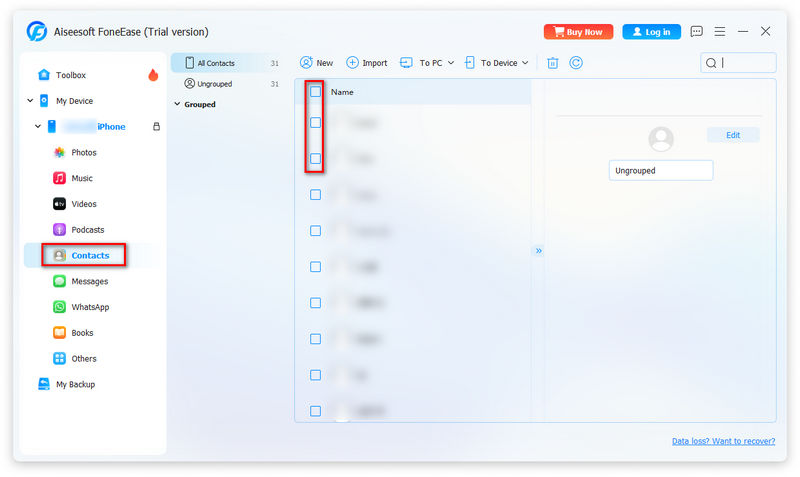
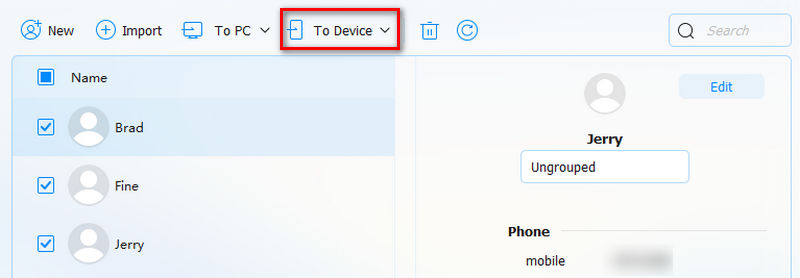
Aiseesoft FoneEase is designed for mobile data transfer and management. It connects both iPhones to a computer via USB and lets you pick exactly what you need to transfer without wiping the current data. In addition, it offers a full toolkit to help you back up your iPhone, unlock your iPhone when you forget your password, etc.
Como usá-lo:
 100% seguro. Sem anúncios.
PRÓS
CONTRAS
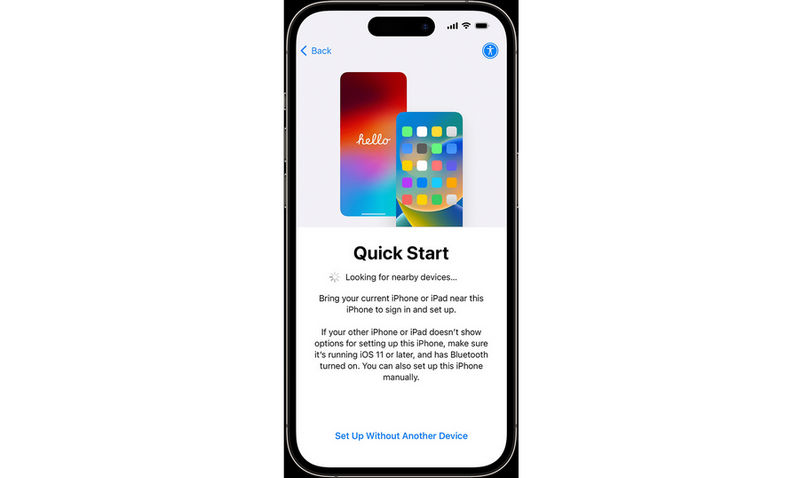
Ideal para: Fully transfer to your new iPhone with wireless connection.
If you're just moving to a new iPhone, you can easily transfer everything, including contacts, using the iOS official quick start function.
PRÓS
CONTRAS
Ideal para: Quick contact transfer when your iPhone is already set up.
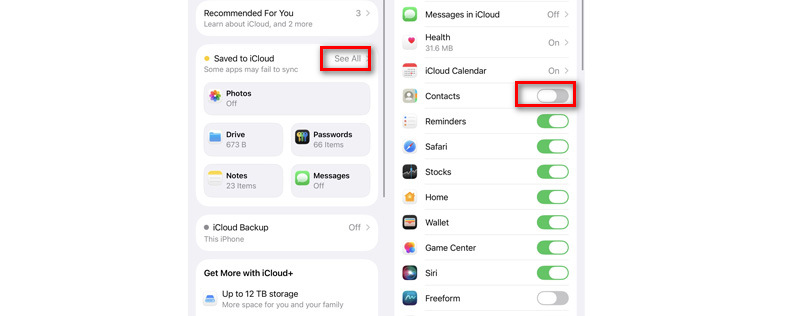
If you have already set up your iPhone, the Quick Start function may not work. In this case, you can choose iCloud to sync contacts from your old iPhone to the new one. This syncs contacts in the background — no reset, no restore. One important note is that you need to log in to the same Apple account on both devices.
PRÓS
CONTRAS
Ideal para: New iPhone contact restores when your old iPhone is available.
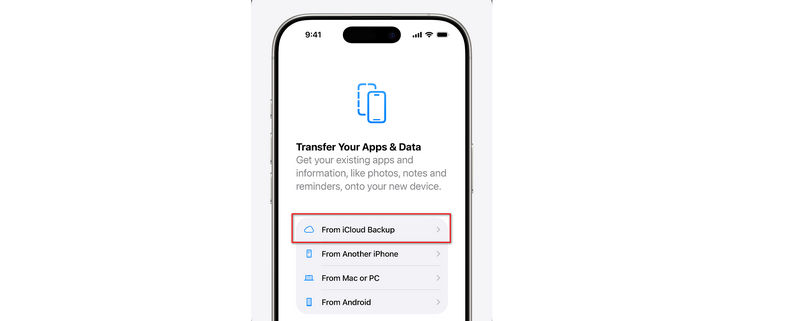
If you cannot reach your old iPhone to use Quick Start. You can also restore from iCloud during setup with iCloud. This will restore all data from the latest backup do iPhone.
PRÓS
CONTRAS
Ideal para: Users who don’t have iCloud backup enabled while keeping a local backup on PC.
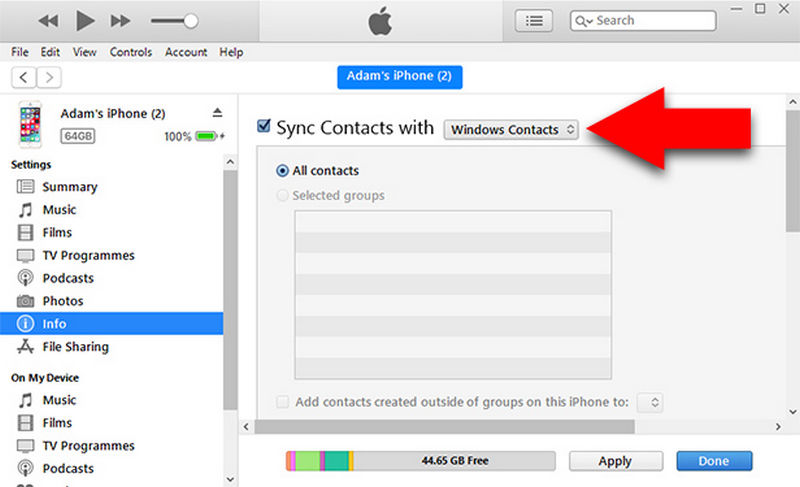
If you prefer a wired full backup, iTunes (Windows) or Finder (macOS Catalina+) can back up your old iPhone and push it to the new one.
PRÓS
CONTRAS
Ideal para: Transfer a small number of selected contacts to a new iPhone
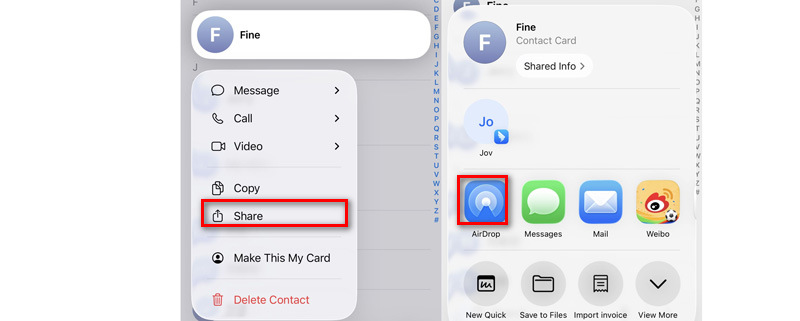
Need to move just a few contacts without opening a computer? Airdrop is the fastest ad-hoc method.
PRÓS
CONTRAS
Why didn't my contacts transfer to the new phone?
Most common causes: unstable Wi-Fi (if using iCloud), different Apple IDs on the two phones, or iCloud Contacts toggle not enabled on both sides. Check your internet connection first, then verify the Apple ID and Contacts toggle under Settings > iCloud.
What should I do before switching to a new iPhone?
Back up your old iPhone (iCloud or computer). Make sure both devices have sufficient battery (>50%). If using wireless methods, connect to a stable Wi-Fi network.
Does iPhone keep contacts on the SIM card?
No — iPhone does not automatically import SIM contacts. If you saved contacts to the SIM on an older phone, back them up to iCloud first (Settings > Contacts > Import SIM Contacts), then sync to the new iPhone via iCloud.
How do I avoid duplicate contacts after transferring?
FoneEase has a built-in deduplication feature — it scans for identical contact entries and merges them before transfer. For iCloud, check Contacts on Mac (select Card > Look for Duplicates) before syncing.
Conclusão: Qual você deve escolher?
If you are setting up a brand new iPhone, Quick Start and iCloud restore are the best choices.
If both iPhones are already set up and you need contacts only, iCloud sync is quick and easy.
For selective transfer without overwriting, FoneEase must be your first choice.
 Restaurar contatos perdidos/excluídos após o iPhone travar no iTunes ou backup do iCloud
Este ensaio irá dizer-lhe para restaurar contatos do iTunes ou backup do iCloud no iPhone (iPhone 15/15 Pro).
 Como transferir notas do iPhone para o novo iPhone 15/15 Pro
Como você transfere notas de um iPhone para outro? Este artigo ensina você a transferir notas de iPhone para iPhone.
 Como mesclar contatos duplicados para iPhone/Android
Como mesclar contatos no iPhone/Android? Este artigo apresenta todos os métodos para ajudá-lo a mesclar facilmente contatos no Android/iPhone.
Transferir do iPhone para o iPhone
1.1 Transferir dados do iPhone para o iPhone
1.2 Transferir fotos do iPhone para o iPhone
1.3 Transferir aplicativos do iPhone para o iPhone
1.4 Transferir contatos do iPhone para o iPhone
1.5 Transferir músicas do iPhone para o iPhone
1.6 Transferir mensagens do iPhone para o iPhone
1.7 Transferir correio de voz de iPhone para iPhone
1.8 Transferir notas do iPhone para o iPhone
1.9 Transferir Toques de iPhone para iPhone
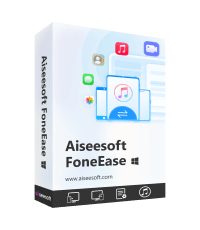
O Aiseesoft FoneEase é uma ferramenta de transferência e gerenciamento de dados que permite mover, fazer backup e gerenciar diversos dados entre iOS, Android e computadores de forma integrada, sem precisar redefinir o telefone ou usar o iTunes.
100% seguro. Sem anúncios.

*Campo obrigatório
*Por favor, insira um e-mail válido