Converter vídeo Ultimate
 100% seguro. Sem anúncios.
100% seguro. Sem anúncios.
Às vezes, tornar um vídeo mais fluido e visualmente mais atraente significa alterar a taxa de quadros de forma que ela corresponda à sua visão artística ou aos padrões da plataforma. Usar uma técnica eficaz de ajuste fino de taxa de quadros pode ser uma ótima maneira de otimizar o vídeo. Aprimorador de FPS Uma ótima ferramenta para te ajudar com isso é um conversor de FPS de vídeo adequado. Com ele, você pode aumentar ou diminuir a taxa de quadros para 24 fps, 30 fps ou 60 fps sem precisar ser um especialista em edição. Este tutorial apresenta alguns dos melhores softwares para alterar o FPS do seu vídeo de forma eficaz. Ao escolher a ferramenta certa, você poderá melhorar a nitidez do movimento, tornar a experiência de assistir a vídeos mais agradável e obter um vídeo com qualidade profissional com pouco esforço.
Antes de comprar um conversor de FPS para vídeo, é importante entender o significado de FPS (Quadros por Segundo). FPS é o número de imagens distintas que aparecem em um segundo de reprodução de vídeo. Geralmente, um FPS mais alto resulta em movimentos mais suaves, enquanto um FPS mais baixo tende a proporcionar um efeito mais "cinematográfico", mas durante movimentos rápidos a imagem pode parecer menos fluida.
A seguir, apresentamos uma explicação mais detalhada dos padrões de taxa de quadros mais comuns:
24 FPS – Padrão Cinematográfico
30 FPS – Taxa de quadros de vídeo padrão
60 FPS – Reprodução de Movimento Suave
120 FPS ou mais – Desempenho extremamente fluido
Compreender esses níveis de FPS ajudará você a escolher a taxa de quadros de vídeo correta antes de converter ou aprimorar seus vídeos.
Existem dois métodos principais para alterar a taxa de quadros dos vídeosExistem dois métodos principais: a conversão de taxa de quadros original (padrão) e a interpolação de quadros por IA, realizada por meio de tecnologia moderna. Compreender as diferenças entre eles é fundamental para selecionar a técnica mais adequada, que resultará em uma reprodução de vídeo fluida e com aparência natural.
Conversão de taxa de quadros padrão
A conversão padrão de FPS ajusta a taxa de quadros duplicando ou removendo quadros duplicados do vídeoEste é o método mais básico e amplamente aceito.
Caracteristicas principais
Interpolação de quadro AI
Interpolação de quadros por IA Utiliza algoritmos de inteligência artificial para gerar novos quadros intermediários entre os existentes. Isso cria um movimento mais suave em comparação com os métodos tradicionais.
Caracteristicas principais
Qual método você deve escolher?
Se sua principal preocupação é simplesmente alterar o FPS o mais rápido possível, utilizando o mínimo de recursos do sistema, você deve optar pela conversão padrão. Por outro lado, se você deseja movimentos mais fluidos e obter qualidade de vídeo profissional, deve escolher a interpolação por IA.
Você pode escolher o melhor conversor de FPS de vídeo para suas necessidades específicas de edição, levando em consideração essas duas abordagens.
Se você deseja o melhor conversor de FPS para melhorar a fluidez do movimento e converter taxas de quadros de forma inteligente, Aiseesoft Video Converter Ultimate é uma das ferramentas mais recomendadas. Ela utiliza um modelo avançado de interpolação por IA para gerar novos quadros em vez de simplesmente copiar os existentes, resultando em movimentos mais nítidos e reprodução mais natural. Isso a torna ideal para vídeos de jogos, filmagens esportivas, cenas de ação e tarefas profissionais de aprimoramento de vídeo.
Downloads
100% seguro. Sem anúncios.
100% seguro. Sem anúncios.
Passos para converter FPS de vídeo com interpolação de IA
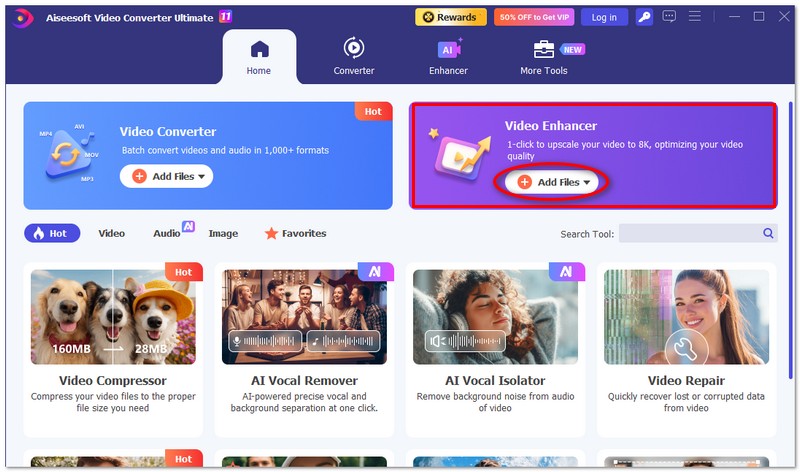
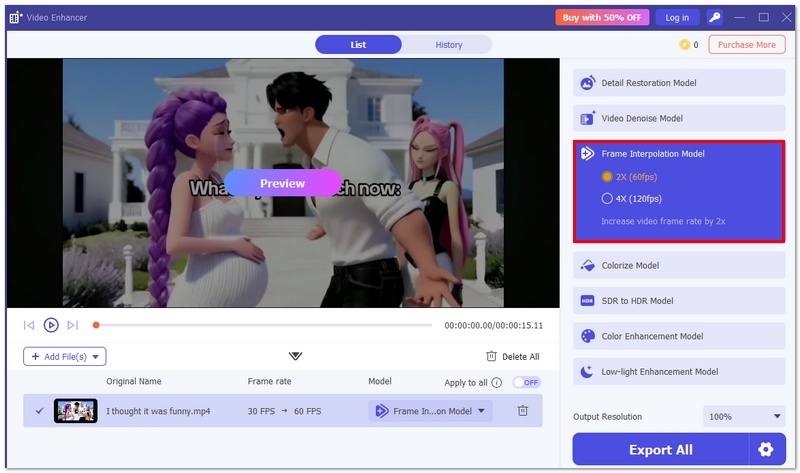
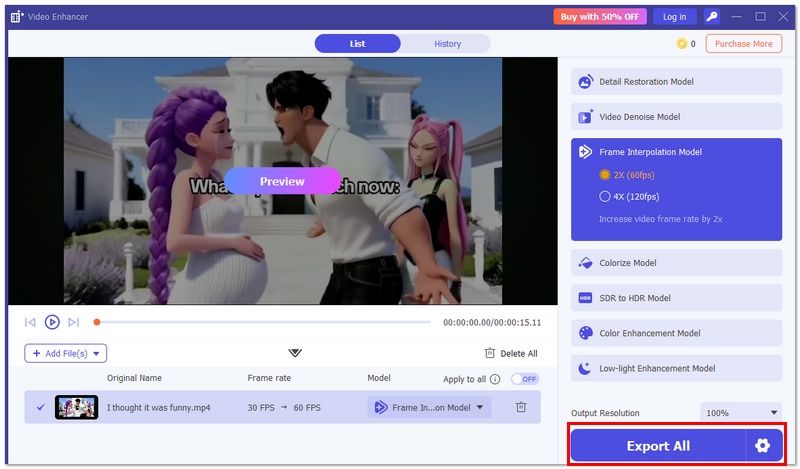
Ao utilizar a tecnologia de interpolação por IA, esta ferramenta ajuda você a obter uma conversão de taxa de quadros de nível profissional com perda mínima de qualidade.
Se você preferir uma maneira rápida de alterar diretamente as taxas de quadros dos seus vídeos, você pode tentar usar alguns trocadores de FPS de vídeo online gratuitos. Esses conversores de FPS baseados na web oferecem uma maneira conveniente de ajustar as taxas de quadros sem instalação de software. Muitas ferramentas associadas estão disponíveis para ajudar você a converter FPS de vídeo com base em suas necessidades. Embora muitas vezes tenham limitações, são suficientes para as necessidades básicas de conversão de FPS. Esta parte recomendará quatro opções populares para você escolher.
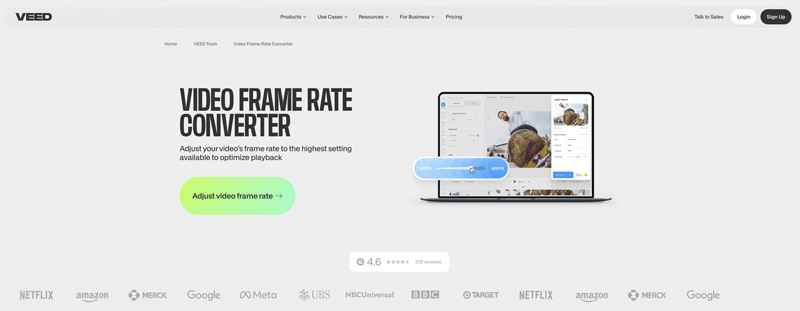
VEED Video Frame Rate Converter é um popular trocador de FPS de vídeo que permite que você ajuste a taxa de quadros do seu vídeo online. Ele permite que você altere a taxa de quadros do vídeo de origem para 16, 24, 30 ou 60 FPS para otimizar a reprodução. Todos os formatos de vídeo comumente usados são suportados. Você pode simplesmente carregar seu vídeo, localizar a opção Frames Per Second à esquerda e, em seguida, selecionar o FPS desejado.
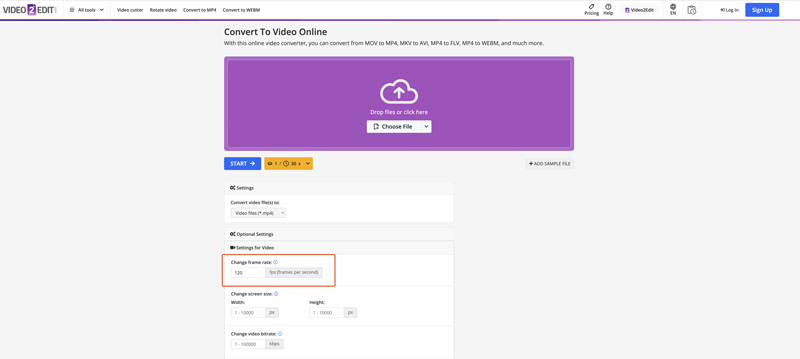
Convert To Video Online é usado principalmente para fazer conversões de vídeo online. Por exemplo, ele permite que você converta facilmente de MOV para MP4, MKV para AVI, MP4 para FLV e muito mais. Ele oferece várias configurações opcionais para você ajustar. Ele permite que você altere livremente a taxa de quadros entre 1 a 120 FPS. Como você pode ver, este conversor de FPS de vídeo online também permite que você personalize a taxa de bits do vídeo, codec, tamanho da tela e muito mais.
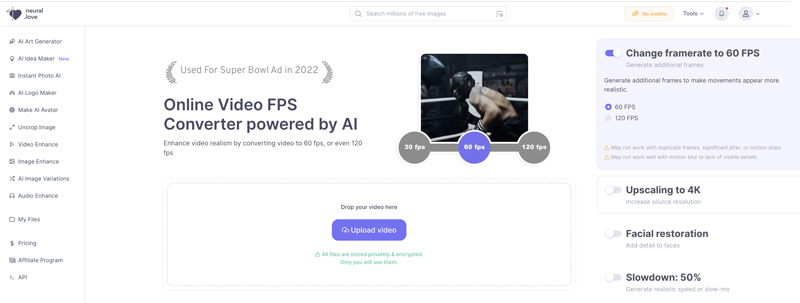
O conversor online de FPS de vídeo neural.love foi especialmente desenvolvido para alterar a taxa de quadros (FPS) de vídeos usando inteligência artificial. Ele permite converter vídeos para 60 FPS ou 120 FPS com qualidade aprimorada. Após o upload do vídeo, você pode ativar a opção "Alterar taxa de quadros" e selecionar 60 FPS ou 120 FPS. Além disso, este conversor online de FPS de vídeo com IA permite aumentar a resolução para 4K, realizar restauração facial e aplicar efeito de câmera lenta.
O FlexClip Online Video Frame Rate Converter compartilha uma maneira simples de alterar o FPS do seu vídeo online para melhor visualização. Ele permite que você acelere ou desacelere facilmente seu vídeo e converta a taxa de quadros original para 24, 25, 30, 50 ou 60 FPS. Mais do que apenas um conversor de FPS de vídeo online, o FlexClip carrega vários recursos e efeitos de edição comumente usados. Por exemplo, ele permite que você corte, recorte ou gire um vídeo, altere a velocidade de reprodução, aplique filtros e muito mais. Após a edição, você pode clicar em Exportar para exibir opções relacionadas, como resolução, taxa de quadros e qualidade. Você pode selecionar um FPS adequado na lista suspensa de Taxa de quadros.

Segue abaixo a tabela comparativa das 5 ferramentas de conversão de FPS de vídeo, com base em recursos, usabilidade, capacidade de IA e melhores casos de uso.
| ferramenta | Plataforma | Interpolação de quadro AI | Faixa de ajuste de FPS | Facilidade de uso | Qualidade de saída | Mais Adequada Para |
| Aiseesoft Video Converter Ultimate | Windows/Mac | ✅ Sim | 24 fps → 60 fps / 120 fps / superior | ⭐⭐⭐⭐⭐ | ⭐⭐⭐⭐⭐ | Aprimoramento profissional de vídeo, vídeos de jogos e esportes |
| Conversor de taxa de quadros de vídeo VEED | Online | ❌ Não | Até 60fps | ⭐⭐⭐⭐⭐ | ⭐⭐⭐⭐ | Alterações rápidas de FPS online para vídeos de redes sociais |
| Converter para vídeo online | Online | ❌ Não | Configurações básicas de FPS | ⭐⭐⭐⭐ | ⭐⭐⭐ | Conversão simples de taxa de quadros sem instalação de software |
| neural.love Conversor FPS de Vídeo Online | Online | ⚠️ Processamento de IA limitado | Melhoria moderada de FPS | ⭐⭐⭐⭐ | ⭐⭐⭐⭐ | Aprimoramento de vídeo online com auxílio de IA |
| Conversor de taxa de quadros de vídeo FlexClip | Online | ❌ Não | Predefinições padrão de FPS | ⭐⭐⭐⭐⭐ | ⭐⭐⭐⭐ | Iniciantes na criação de vídeos de marketing ou apresentação |
Converter 30fps para 60fps melhora a qualidade?
Converter um vídeo de 30fps para o formato de 60fps não resultará em uma melhoria na qualidade do vídeo original, mas o movimento ficará mais suave e fluido. Geralmente, a conversão pode causar fantasmas na imagem, mas a interpolação de quadros por IA é capaz de criar quadros extras para que o movimento fique ainda mais natural e a reprodução não seja interrompida por artefatos. Além disso, é especialmente útil para esportes, jogos e cenas de ação.
Aumentar o FPS melhora a qualidade do vídeo?
Aumentar a taxa de quadros (FPS) afetará significativamente a fluidez do movimento. Você pode tornar um vídeo mais fluido aumentando o FPS. No entanto, esse processo não melhorará a qualidade geral da imagem. Contudo, alguns Suavizadores de vídeo com tecnologia de IAAssim como o Filmai, que já foi apresentado, o programa aumentará automaticamente a qualidade do vídeo e a taxa de quadros por segundo (FPS).
Por que meu vídeo convertido parece "fantasma"?
Um vídeo com "efeito fantasma" ocorre quando os quadros são simplesmente duplicados durante a conversão, criando um rastro ou movimento borrado. Usar um conversor de FPS com IA pode gerar quadros intermediários reais para reduzir o efeito fantasma e tornar o movimento mais suave.
Posso converter 24fps para 60fps para jogos?
Sim, você pode converter 24fps para 60fps para jogos, mas a conversão padrão pode produzir movimentos instáveis ou fantasmas. Recomenda-se o uso de um conversor de fps com IA, pois ele gera novos quadros intermediários para criar visuais de jogo mais suaves e fluidos.
Conclusão
Você precisa converter FPS de vídeo para vários propósitos. Este post oferece cinco excelentes conversor de vídeo FPS recomendações. Selecione a desejada para alterar facilmente a taxa de quadros dos vídeos.
 Alternativas ao SVP para encontrar a melhor ferramenta de conversão de taxa de quadros
O SmoothVideo Project funciona com o VLC? Qual a melhor alternativa ao SmoothVideo Project? Analise os recursos de interpolação de quadros do SmoothVideo Project e conheça três alternativas.
 Converter vídeo para 60 FPS: Guia completo para reprodução fluida
Aprenda como converter vídeos para 60 FPS com facilidade no Windows, Mac e online. Descubra os métodos e as melhores ferramentas para uma reprodução mais fluida e de alta qualidade.
 Análise da interpolação de vídeo FlowFrames: Movimento suave ou não?
Descubra se a interpolação de vídeo do FlowFrames pode tornar os vídeos mais suaves, a velocidade de processamento, a qualidade do resultado e alternativas mais inteligentes.
O Video Converter Ultimate é um excelente conversor, editor e aprimorador de vídeo para converter, aprimorar e editar vídeos e músicas em 1000 formatos e muito mais.
100% seguro. Sem anúncios.
100% seguro. Sem anúncios.

*Campo obrigatório
*Por favor, insira um e-mail válido