Converter vídeo Ultimate
 100% seguro. Sem anúncios.
QuickTime videos stutter on Windows and certain players. That’s why converting MOV to MKV often matters.
If you’ve ever tried to play a MOV file on a non-Apple device, you know the pain. Your media player may not play it properly. That’s a big reason many people start searching for MOV para MKV. The good news is that converting between these two formats is straightforward. More importantly, in many cases, you don’t lose quality. This guide covers two reliable ways to do it.
The short answer for the MOV to MKV conversion is for compatibilidade e flexibilidade.
MOV is Apple’s proprietary container, great for editing but is not widely supported for playback outside Apple’s ecosystem. If you edit files in Final Cut Pro or work entirely within macOS, MOV is a good choice. MOV files are built around Apple’s QuickTime framework. However, some devices or systems, such as certain Windows machines, need extra codecs to preview or play MOV. Moreover, web browsers often refuse to play them.
MKV is a more open, flexible container that plays well on almost all devices. It can handle multiple audio tracks, subtitles, and chapters. That’s why many users convert MOV to MKV.
| Característica | MOV | MKV |
| Desenvolvedor | Apple | Matroska |
| Licenciamento | Proprietário | Freely licensed |
| Suporte para codec | Primarily H.264, ProRes, HEVC | Virtually any codec (H.264, H.265, VP9, AV1, etc.) |
| Múltiplas faixas de áudio | Limitada | Excelente |
| Suporte a legendas | Básico | Excellent (SRT, SSA, VobSub, etc.) |
| Editing software support | Excellent (mainly on Mac) | Fraco |
| Compatibilidade de reprodução | Good on Apple devices | Broad across Windows, Linux, Android, smart TVs |
| Tamanho do arquivo | Larger at same quality | Smaller, especially with H.265 |
If you’ve got many large MOV files and want to convert them in one go, desktop software is recommended. Aiseesoft Video Converter Ultimate is one of the top contenders out there. It handles all MOV, MKV, MP4, and FLV videos (4K and 8K supported). It uses advanced remuxing technology to make the conversion from MOV to MKV without re-encoding. Moreover, this converter carries AI-powered editing and enhancement functions. That means you can improve the output quality during the conversion.
100% seguro. Sem anúncios.
100% seguro. Sem anúncios.
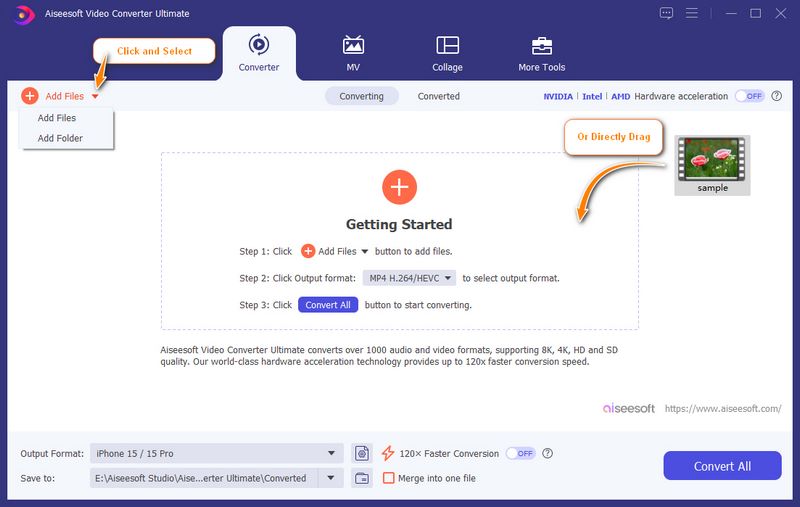
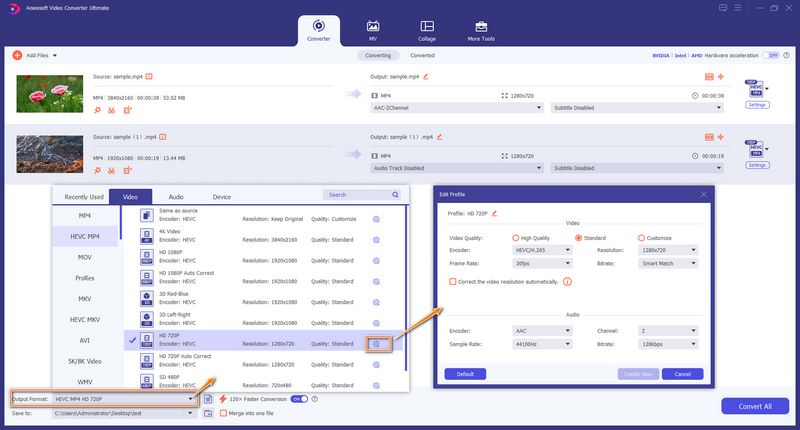
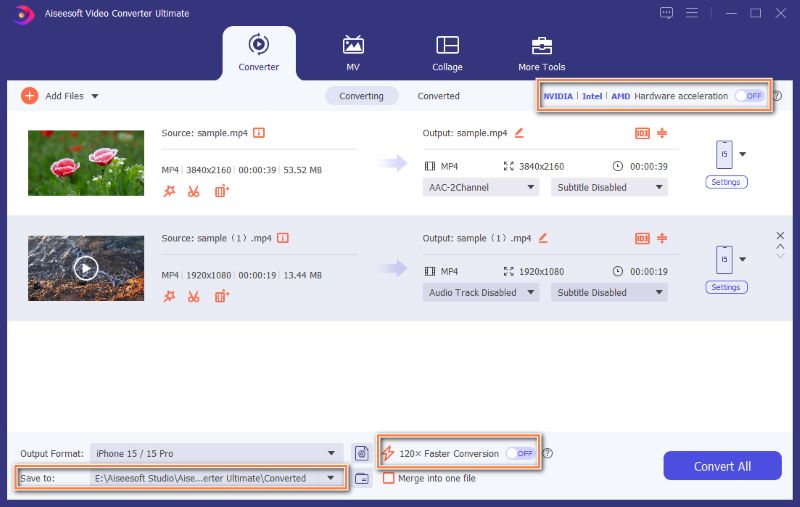
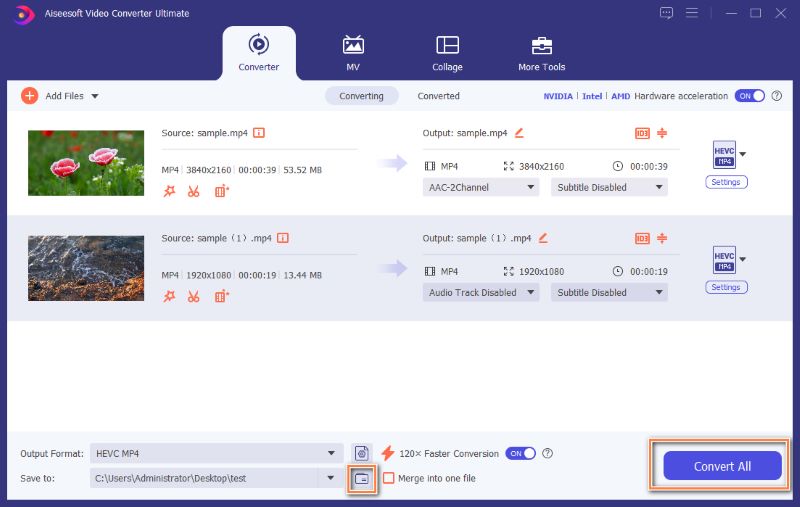
If you need to convert one or two MOV clips and don’t want to install a dedicated converter, online tools are a good option. The only thing that may bother you is: with so many online MOV to MKV converters available, which one should you use?
The truth is, most online converters will do the conversion similarly, and most come with limits. You can pick a reputable platform like CloudConvert, Media.io, FreeConvert, or Convertio and start a trial with your own MOV file. This section takes the popular CloudConvert MOV to MKV Converter as an example.
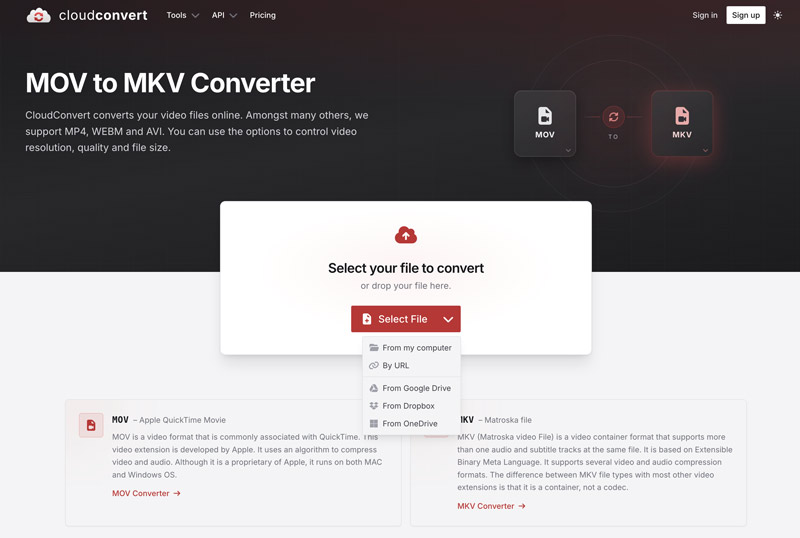
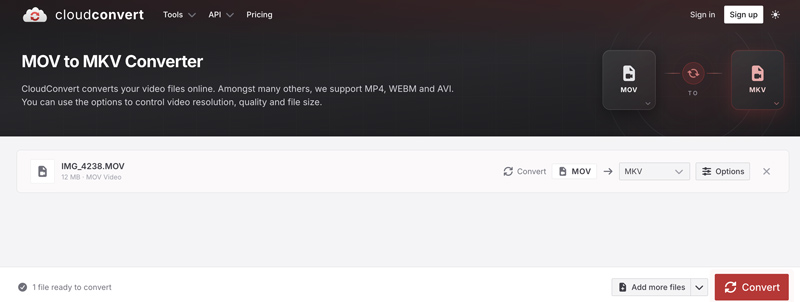
If you choose to convert MOV to MKV online, ensure you use a reputable converter that will automatically remove your uploads within 24 hours. Also, don't upload any sensitive or private footage.
Question 1. Can I convert MOV to MKV for free?
Yes. As you can see above, many online converters let you convert for free. However, these free conversions often come with some limitations, such as file size caps or occasional ads. You can also use an open-source video transcoder like HandBrake to handle the MOV to MKV conversions.
Question 2. Can I just rename .mov to .mkv?
No. Renaming the file extension won’t do the actual conversion. Most devices and players may still detect it as MOV. However, in reality, the changed MKV file you get will play smoothly.
Question 3. Will MKV files play on my iPhone or Apple TV?
MKV isn’t natively supported by Apple devices, including iPhones, iPads, and Apple TVs. You often need a third-party player like VLC to play them.
Conclusão
This guide explains why you might want to convert MOV para MKV and how to do that. As you can see, converting between them is straightforward, whether you use a desktop or online converter. If you need to handle multiple files, especially for these large ones, a desktop converter like Aiseesoft Video Converter Ultimate is recommended. For a single file, use an online tool instead.
 MOV vs. MP4: qual formato de vídeo você deve escolher
Diferencie MOV vs. MP4 em termos de compactação, tamanho de arquivo e qualidade. Além disso, verifique o melhor conversor de vídeo para alterar as extensões dos arquivos profissionalmente.
 Guia Passo a Passo de como converter arquivos MOV para MP4 no Mac
Este é um guia completo sobre como converter MOV para MP4 no Mac online ou offline em 2025. Você pode obter processos detalhados para seguir Passo a Passo.
 A análise abrangente do melhor reprodutor MKV para Mac
MKV Player para Mac é obrigatório porque o Mac não oferece suporte nativo a MKV. Se não tiver certeza de qual comprar, leia esta análise para aprender os melhores com reprodução de alta qualidade.
Converter/Baixar/Editar SWF
1.1 FRS1.2 SWF para MP41.3 SWF para GIF1.4 SWF para MOV1.5 SWF para HTML51.6 SWF para AVI1.7 SWF para WMV1.8 SWF para 3GP1.9 SWF para DVD1.10 Conversor SWF Mac1.11 Editar SWF
O Video Converter Ultimate é um excelente conversor, editor e aprimorador de vídeo para converter, aprimorar e editar vídeos e músicas em 1000 formatos e muito mais.
100% seguro. Sem anúncios.
100% seguro. Sem anúncios.

*Campo obrigatório
*Por favor, insira um e-mail válido