Os pré-requisitos para transferir o WhatsApp de um dispositivo Android para um iPhone são um novo iPhone que não tenha sido ativado ou que tenha sido redefinido para os padrões de fábrica. Mas, como todos sabemos, uma redefinição de fábrica apagará todas as informações do seu telefone Android. É assustador, não é? Então, há alguma maneira de ajudá-lo transferir o WhatsApp do Android para o iPhone sem redefinir os padrões de fábrica? Você pode obter respostas neste artigo.

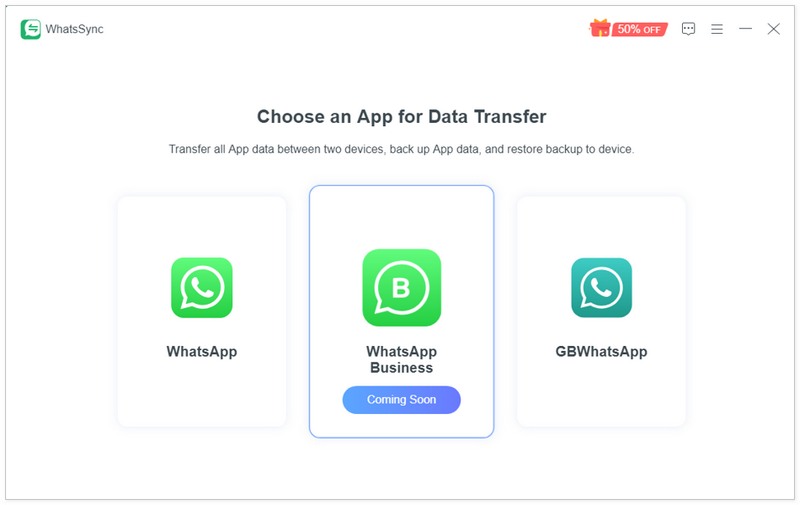
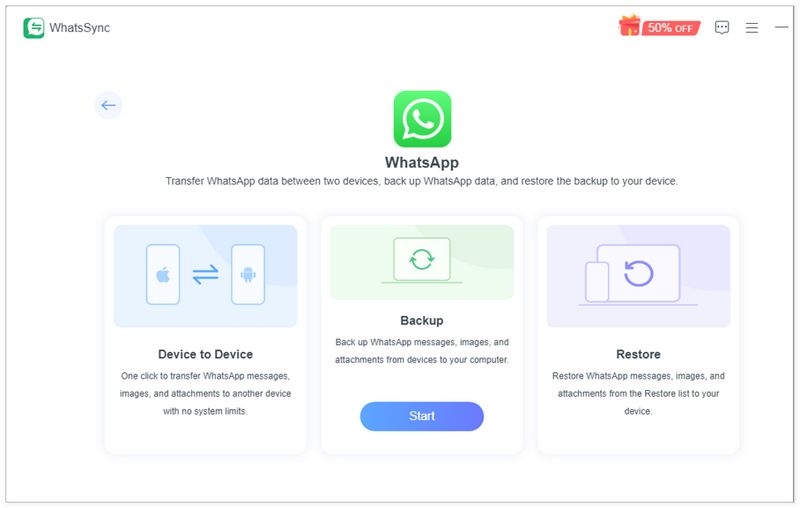
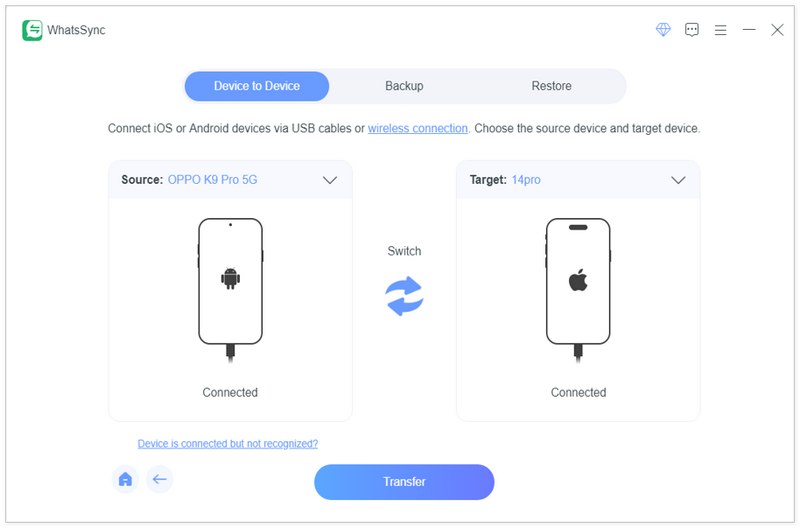
WhatsSync é um poderoso programa de terceiros que ajuda você a transferir todos os dados de conversas do WhatsApp entre dispositivos Android e iOS. Esta ferramenta dedicada à transferência de dados do WhatsApp permite mover ou copiar conversas, chats, documentos e vários anexos do WhatsApp de um telefone Android para um iPhone e de um iPhone para um dispositivo Android com facilidade.
Downloads
 100% seguro. Sem anúncios.
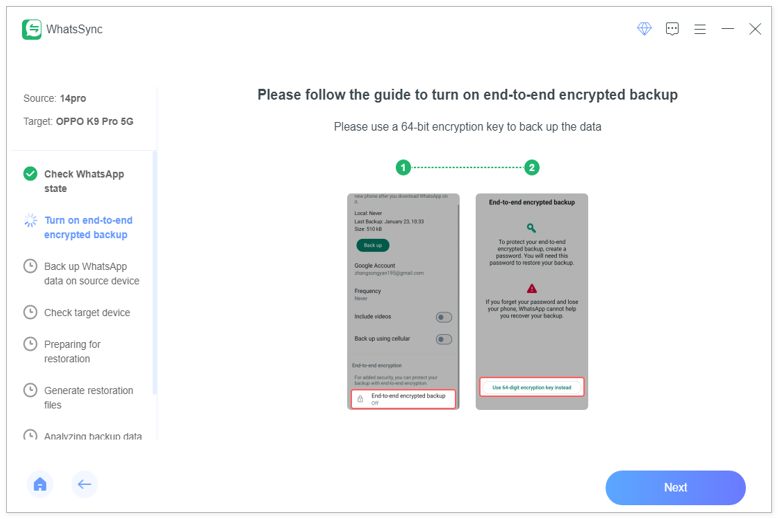
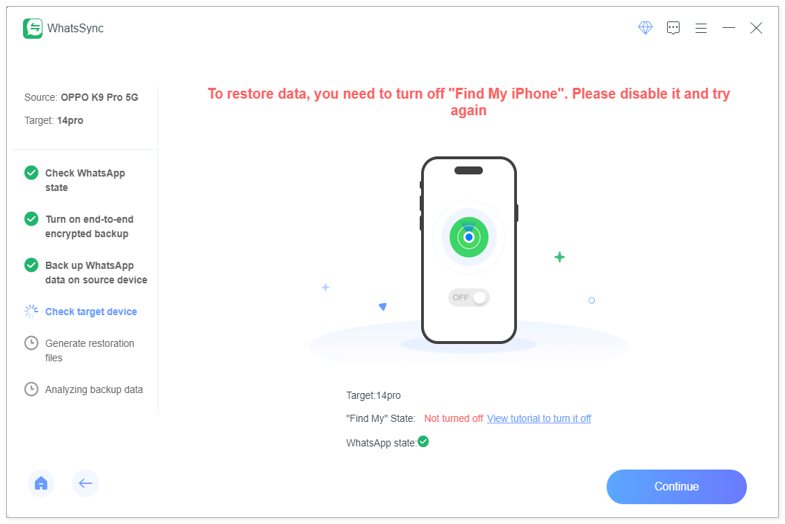
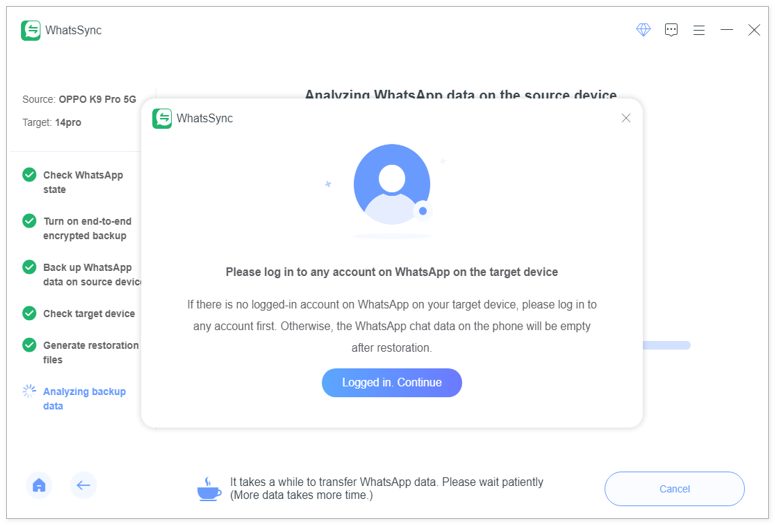
A seguir, apresentamos os Passos detalhados sobre como transferir o WhatsApp do Android para o iPhone sem restaurar as configurações de fábrica, utilizando o WhatsSync.
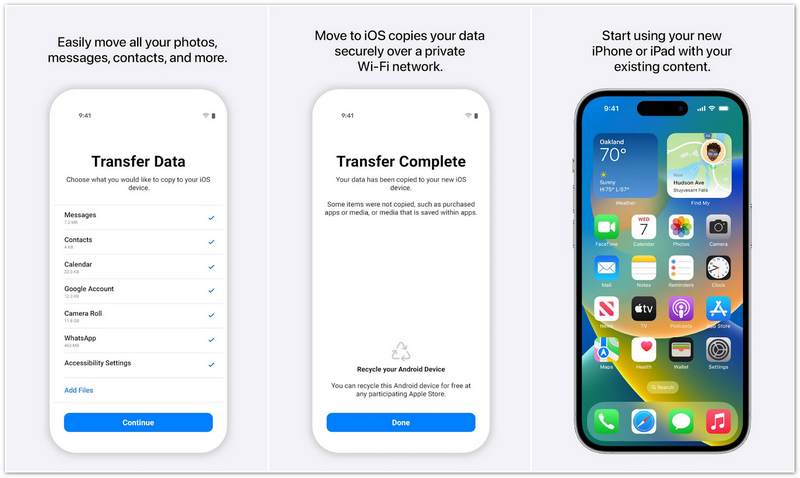
Além de usar o WhatsSync para transferir o WhatsApp para um novo iPhone, você também pode usar o Mover-se para iOS Aplicativo. Você pode acessá-lo e baixá-lo na Google Play. Este aplicativo transferirá seus dados, mas não os verá nem os compartilhará, para que você possa usá-lo com segurança.
Então, como você migra o WhatsApp do Android para o iPhone? Consulte as etapas abaixo.
Vantagens
Desvantagens
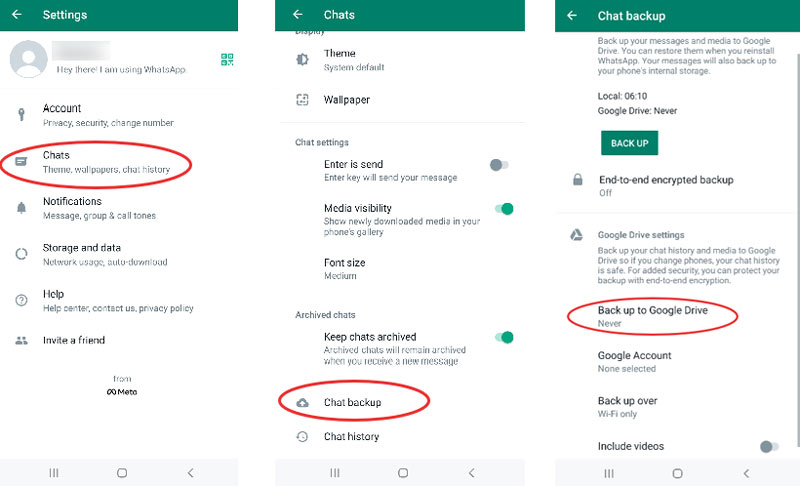
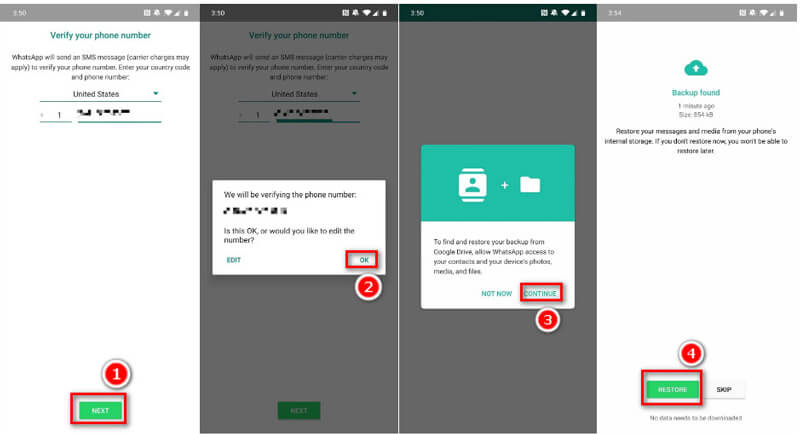
Além dos dois métodos acima, você pode aproveitar Google drive Para transferir conversas e mensagens do WhatsApp do Android para o iOS sem restaurar as configurações de fábrica, basta fazer um backup do WhatsApp do seu celular Android com o Google Drive e, em seguida, restaurar os dados para o seu iPhone usando o mesmo serviço.
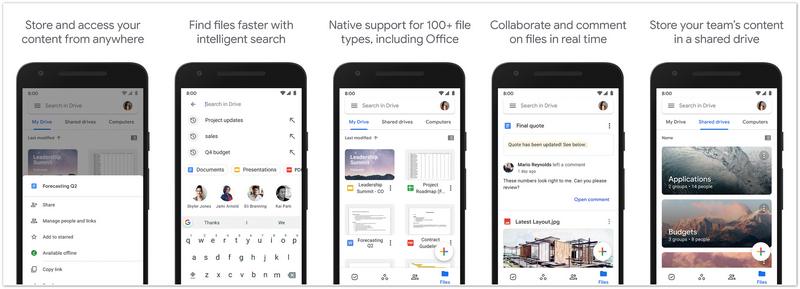
Siga os Passos abaixo e use o Google Drive para transferir o WhatsApp do Android para o iPhone.

Vantagens
Desvantagens
O WhatsApp possui um recurso integrado chamado "Enviar conversa por e-mail" que permite transferir rapidamente suas conversas, fotos, documentos e vídeos. Se você precisar copiar apenas algumas conversas importantes do seu celular Android para um iPhone, use esse método.
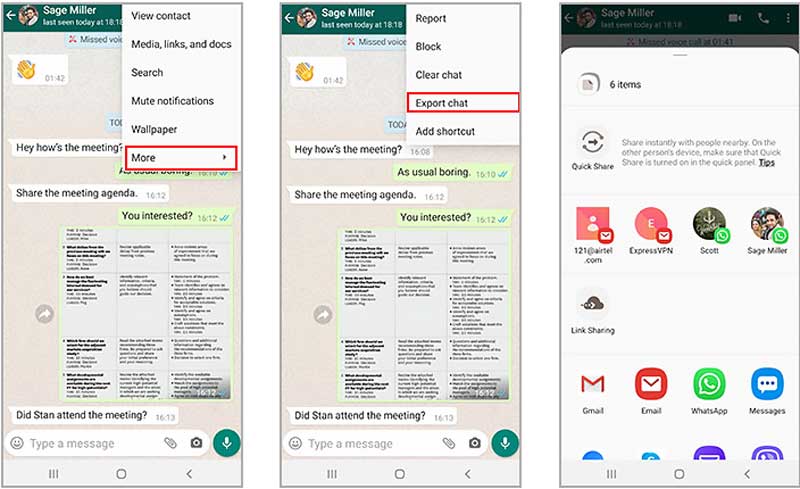
Vantagens
Desvantagens
Como faço para restaurar conversas do WhatsApp do backup do Google Drive em um iPhone?
Abra o WhatsApp e encontre as configurações do seu dispositivo antigo. Selecione Bate-papos e escolha Backup de bate-papo. Você pode optar por fazer backup no Google Drive e inserir sua conta do Google. Após o backup, você pode abrir o WhatsApp no seu iPhone e inserir o mesmo número de telefone usado no seu dispositivo antigo. Siga as instruções para restaurar os dados dos quais você fez backup.
Por que minha transferência do WhatsApp não está funcionando?
Pode ser porque seus dispositivos Android e iPhone estão conectados a redes Wi-Fi diferentes. Além disso, ativar a localização ao vivo também pode levar a uma falha na transferência.
A redefinição de fábrica excluirá as mensagens do WhatsApp?
Sim vai. A redefinição de fábrica não apenas apaga todas as suas mensagens anteriores no WhatsApp, mas também exclui mensagens em outros aplicativos em seus dispositivos Android ou iPhone.
Conclusão
O método oficial para transferir dados do WhatsApp exige que você redefina o telefone de destino para os padrões de fábrica, o que pode levar à perda de dados de outros aplicativos. Mas usando as formas que recomendamos acima, você pode transferir o WhatsApp do Android para o iPhone sem redefinir os padrões de fábricaA ferramenta mais eficaz é usar o WhatsSync. Mas, se o seu computador não estiver disponível, você também pode tentar os outros três métodos.
 Aprenda a fazer backup de mensagens do WhatsApp no iPhone e Android
Como você faz backup de bate-papos antigos no WhatsApp? Posso fazer backup de todas as mensagens do WhatsApp? Confira o guia simples para fazer backup de seus bate-papos do WhatsApp em um computador e unidade.
 Backup do WhatsApp iCloud - Como fazer backup do WhatsApp no iCloud
Por que não consigo fazer backup do meu WhatsApp no iCloud? Como faço para acessar o WhatsApp no iCloud? Como fazer backup do WhatsApp no iCloud? Este post compartilha 3 maneiras simples de criar um backup do WhatsApp no iCloud.
 Recuperação de dados do WhatsApp online grátis no iPhone e Android
Como posso trazer de volta chats deletados do WhatsApp? Como você recupera mensagens deletadas do WhatsApp? Descubra se você pode recuperar dados do WhatsApp online de graça.
Recupere o WhatsApp
1.1 Recuperação do WhatsApp1.2 Recuperar mensagens excluídas do WhatsApp1.3 Recuperar bate-papo excluído do WhatsApp1.4 Recuperar mensagens do WhatsApp Android1.5 Recuperar histórico de bate-papo do WhatsApp Samsung1.6 Recuperar vídeos/imagens do WhatsApp Android1.7 Restaurar mensagens do WhatsApp no novo iPhone1.8 Restaurar o WhatsApp do Google Drive para o iPhone1.9 Backup e Restauração do WhatsApp1.10 Restaurar o WhatsApp do iCloudUma ferramenta eficiente de transferência do WhatsApp que faz backup e sincroniza rapidamente todos os bate-papos, vídeo/áudio, arquivos, adesivos e muito mais do WhatsApp em dispositivos iOS/Android e serviços de nuvem online.
100% seguro. Sem anúncios.

*Campo obrigatório
*Por favor, insira um e-mail válido