Aiseesoft Screen Recorder
 100% seguro. Sem anúncios.
100% seguro. Sem anúncios.
Like taking screenshots, you often need to capture your computer screen for sharing or preserving valuable information. Screen recording is a necessary digital skill for almost all users. This article will talk about how to screen record on a Dell laptop.
For many practical purposes, you may want to record the whole or part of the screen of your Dell computer, with or without audio. Keep reading to learn five standard methods for screen recording on Dell laptops with Windows 11, 10, and 7.
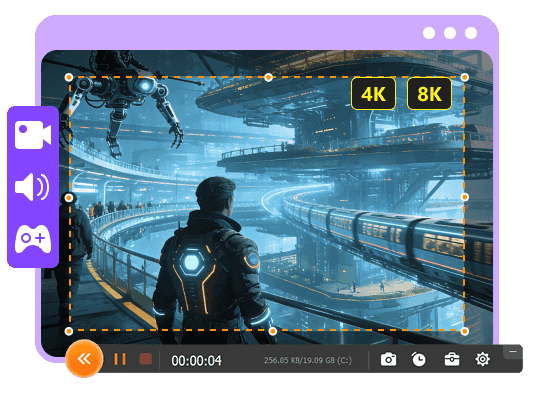
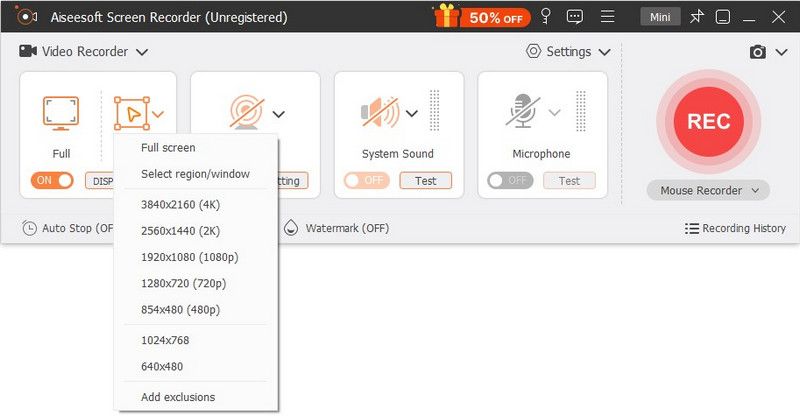
If you prefer straightforward and high-quality screen recordings on your Dell laptop with Windows 11, 10, or 7, Aiseesoft Screen Recorder is well-suited. The software is specially designed to handle various recording tasks on Windows PCs and Macs. It lets you freely capture full screen, active window, selected region, and webcam. Moreover, this screen recorder can record sound from your Dell laptop’s internal audio and microphone.
Downloads
100% seguro. Sem anúncios.
100% seguro. Sem anúncios.
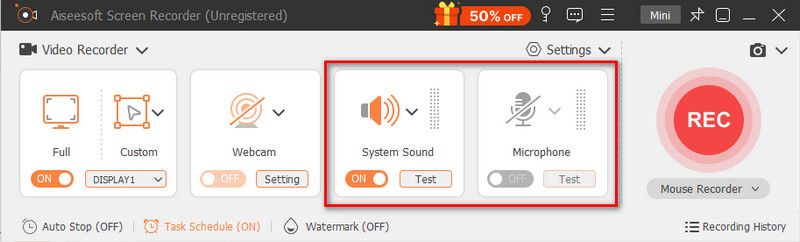
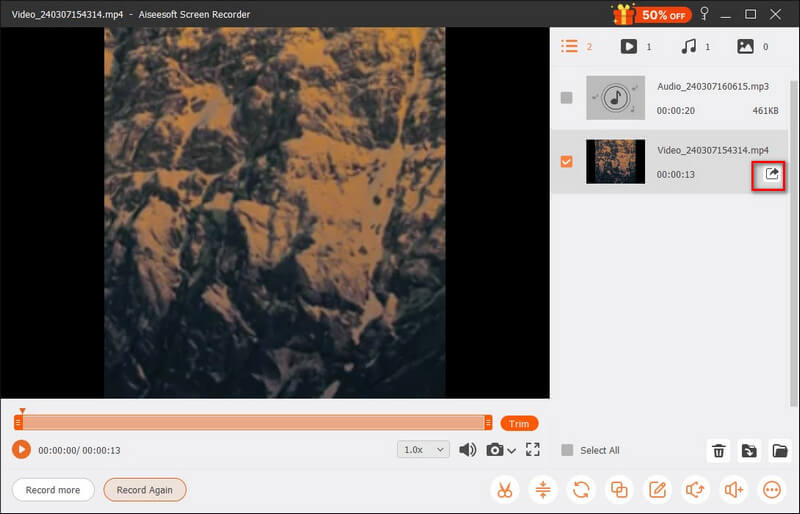
Windows comes with built-in tools for quick screen recordings. Dell laptops run Windows systems, which means you can use these tools to capture everything displayed on the screen with high quality. What’s more, there are several third-party recorders that provide more advanced functions and controls. This section will tell you four more methods to screen record on a Dell laptop for free.
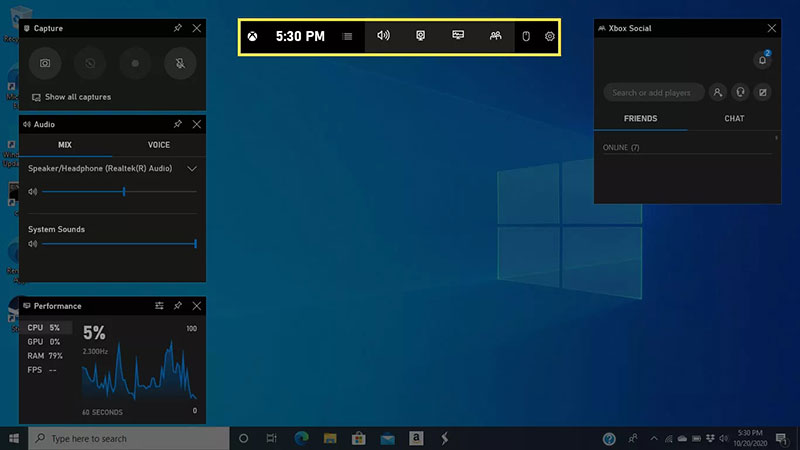
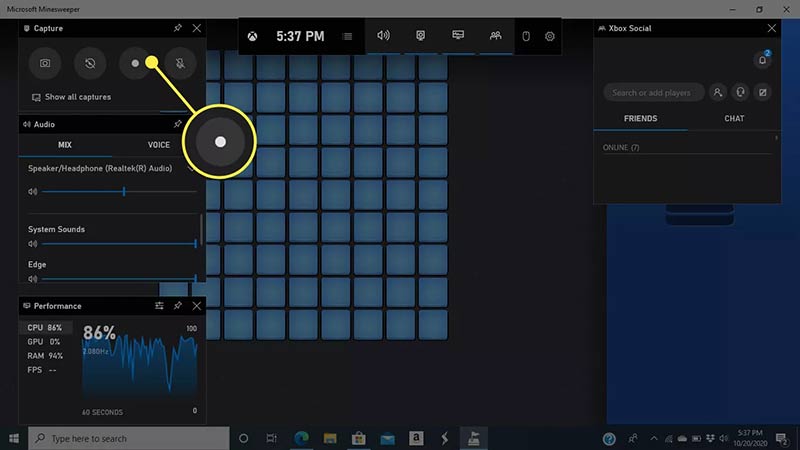
If you need to capture both system audio and microphone while the screen recording, you should go to Áudio and customize related settings.
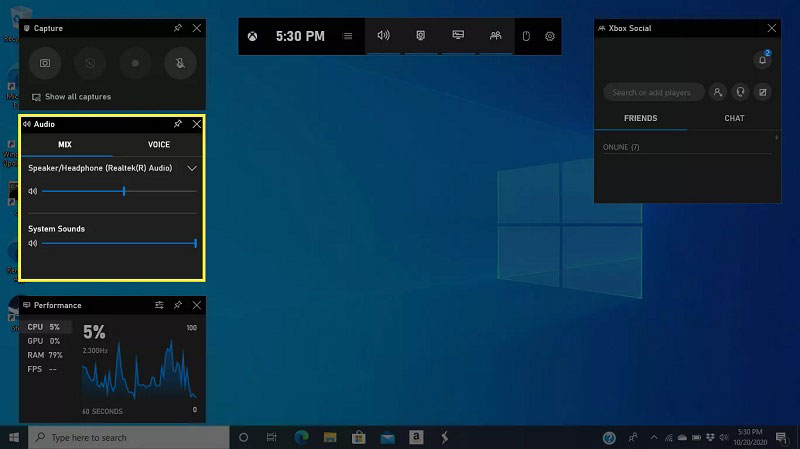
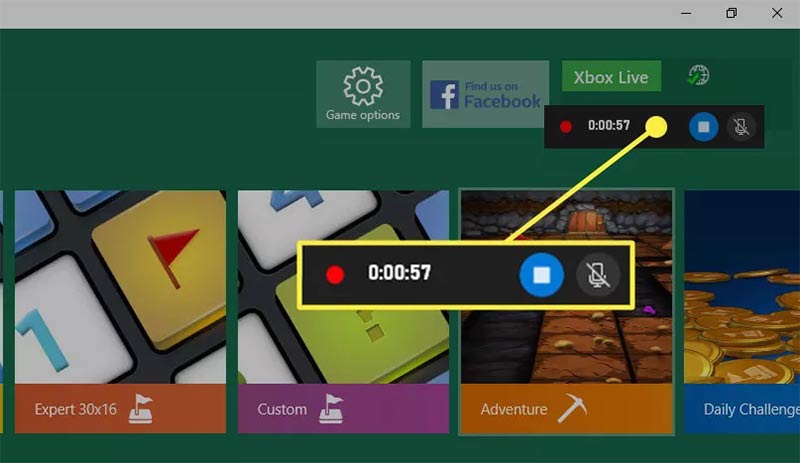
Xbox Game Bar provides a straightforward way to capture screens. However, this tool has some restrictions. For instance, it may fail to capture some specific applications and File Explorer.
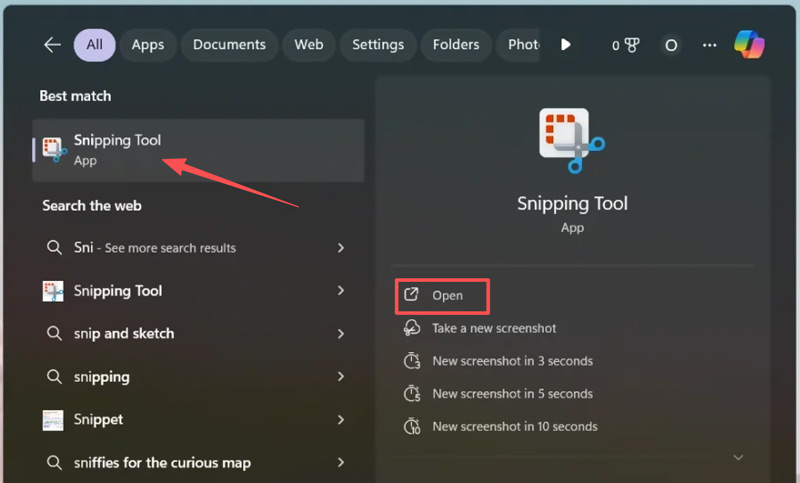
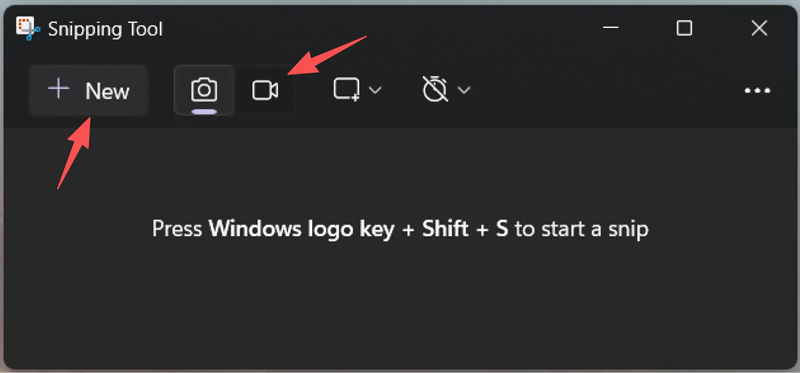
If your Dell laptop runs Windows 11, you can make quick recordings with the Ferramenta de Recorte. This Windows tool is updated to include basic screen recording capabilities.
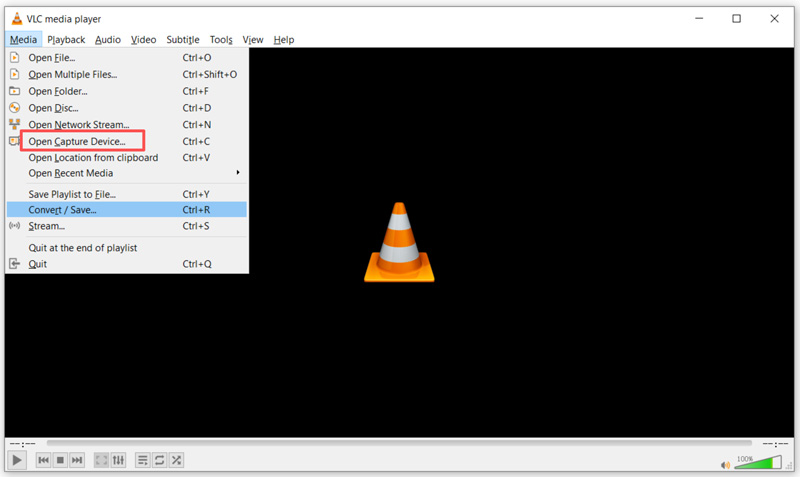
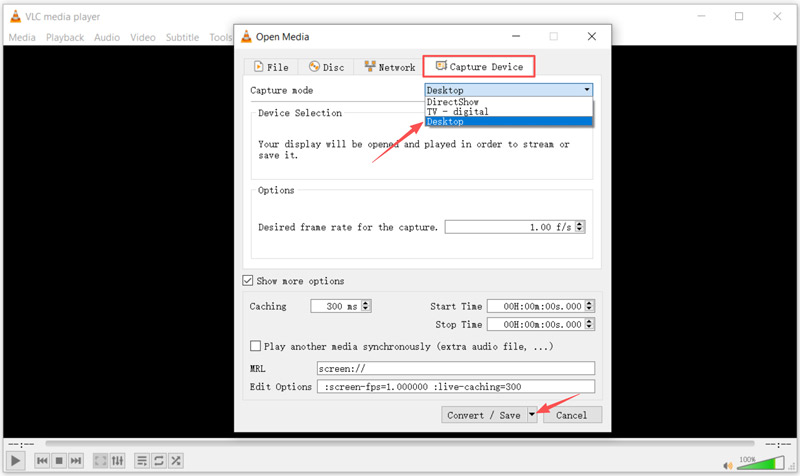
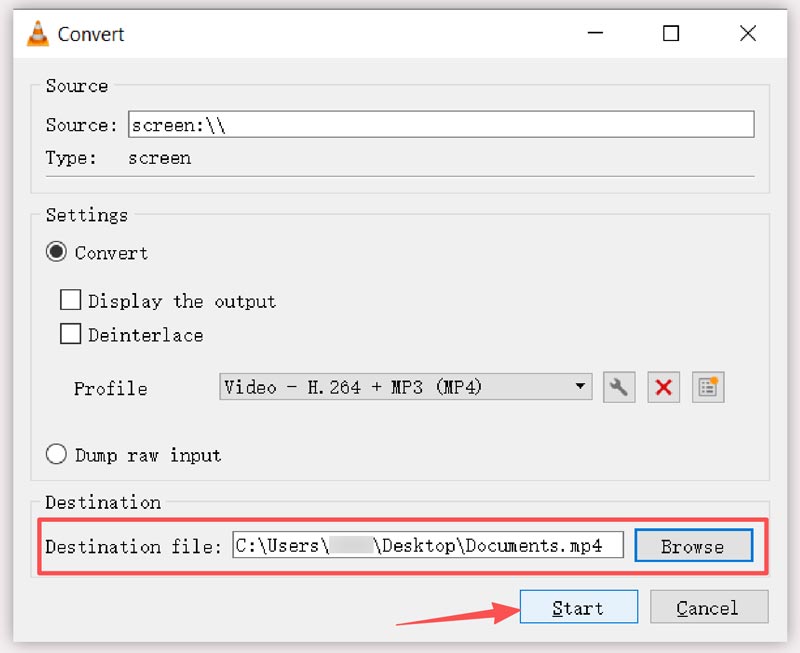
You can use VLC to record your Dell laptop screen. However, its screen recording is only suitable for basic needs. VLC’s “Capture Device” feature cannot capture high-quality tutorials, meetings, and other serious content like dedicated recording software.
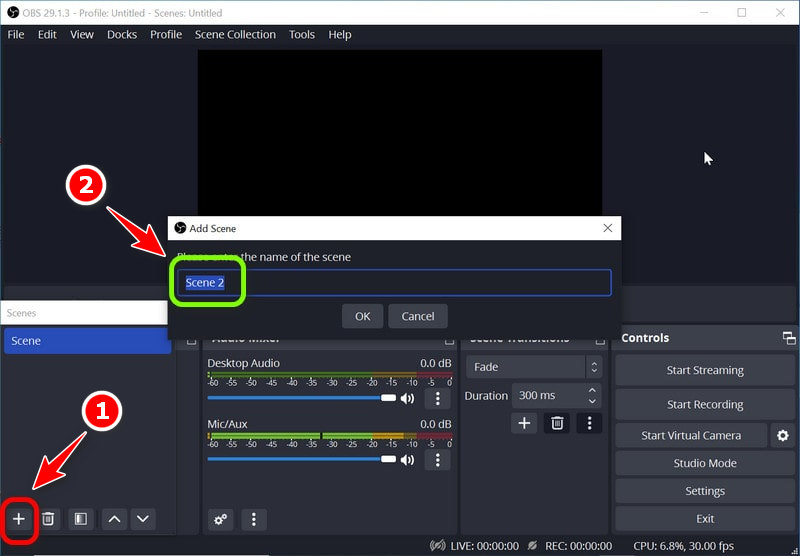
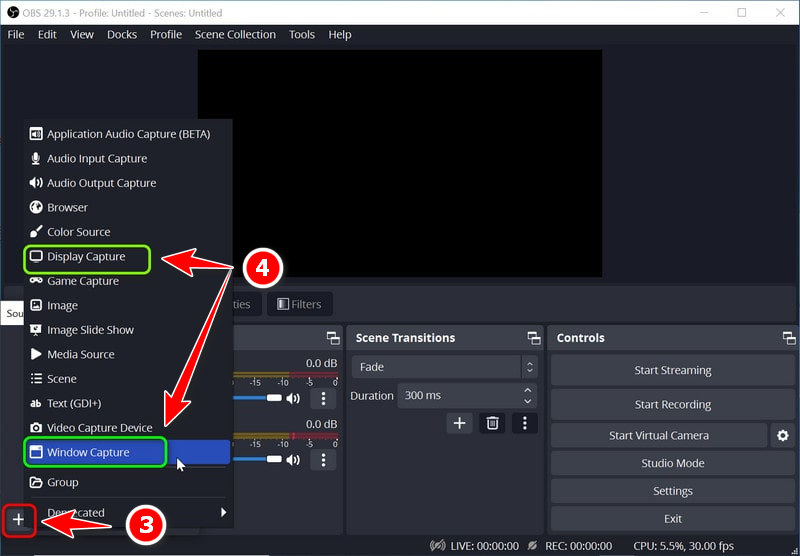
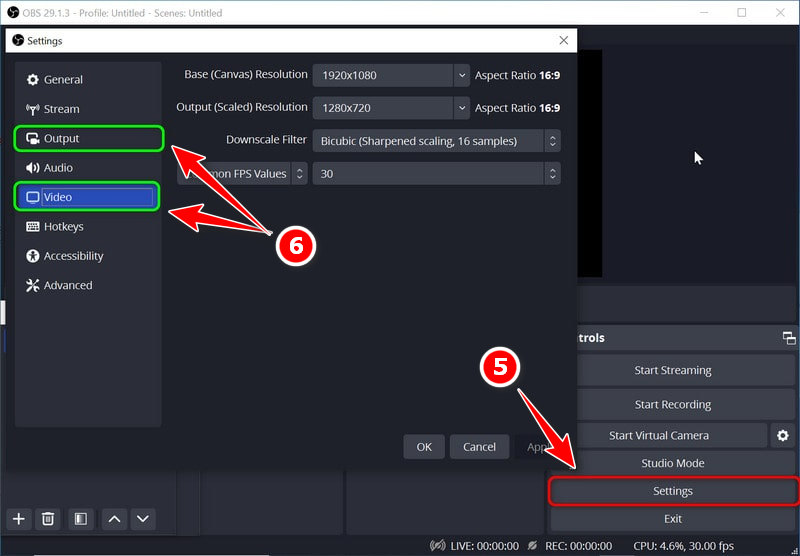
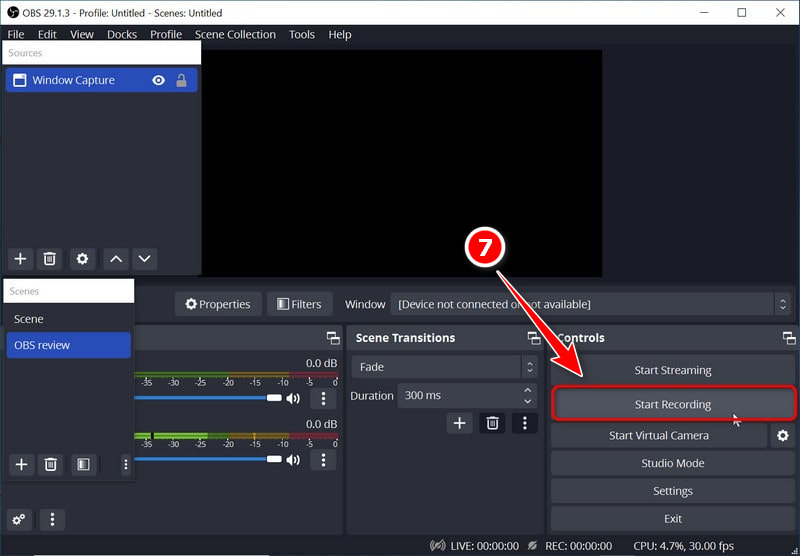
If you are unsatisfied with the built-in recording tools and prefer more advanced features, besides the recommended Aiseesoft Screen Recorder above, there are other popular options, such as OBS Studio, Bandicam, Camtasia, ScreenRec, and ShareX. If you want a completely free screen recorder, OBS is a top contender.
Question 1. How do I record myself on my Dell laptop for free?
If you prefer more controls, advanced features, or higher quality, try using the free screen recording tool, OBS Studio. The software enables you to record yourself on your Dell laptop with your webcam.
If you prefer more controls, advanced features, or higher quality, try using the free screen recording tool, OBS Studio. The software enables you to record yourself on your Dell laptop with your webcam.
Question 2. Is there a free way to screen record on a Dell laptop without Game Bar?
Yes, as you can see above, there are other free options besides the Xbox Game Bar for you to screen record on your Dell laptop. For instance, you can use its built-in Snipping Tool, VLC, and OBS. If you want the best possible quality, OBS Studio is often the recommended recording tool. Besides, you can try other free screen recorders, such as ShareX and Clipchamp.
Question 3. How do you screen record on a Dell laptop with system audio and mic?
Recording your computer screen with system audio and your microphone is quite simple on Windows. The built-in Game Bar can do this with ease. Before starting recording, turn on both “Record game audio” and “Record microphone”. What’s more, the introduced Aiseesoft Screen Recorder and OBS Studio allow you to capture the screen with internal audio and microphone sound.
Conclusão
You can learn five efficient methods to screen record on a Dell laptop. If your goal is to create professional tutorials or serious recordings, Aiseesoft Screen Recorder is definitely the top choice that will align perfectly with your needs. If you only want to perform some quick records, start with built-in tools like Xbox Game Bar and the Snipping Tool.
 [Guia] Captura de tela com gravação de áudio no PC e Mac
Como gravar a tela com áudio? Aqui está o guia Passo a Passo com o gravador de tela mais poderoso para capturar no seu PC com Windows, Mac e iPhone.
 Como consertar a ferramenta de recorte do Windows 11 que não funciona rapidamente
A ferramenta de recorte do Windows 11 às vezes não funciona bem. Não se preocupe. Este artigo explicará os motivos e oferecerá 8 soluções fáceis com etapas detalhadas.
 7 maneiras de gravar áudio interno no Mac [Compatível com Mac Sequoia]
Como gravar áudio interno no Mac? Leia este guia Passo a Passo e descubra 7 maneiras fáceis e rápidas de gravar o áudio do sistema Mac, compatíveis com o macOS Sequoia.
O Aiseesoft Screen Recorder é o melhor software de gravação de tela para capturar qualquer atividade, como vídeos online, chamadas de webcam, jogos no Windows/Mac.
100% seguro. Sem anúncios.
100% seguro. Sem anúncios.

*Campo obrigatório
*Por favor, insira um e-mail válido