Anycoord Location Changer – GPS falso no Android e iOS
 100% seguro. Sem anúncios.
100% seguro. Sem anúncios.
Suppose you want a simple method to enhance your Pokémon experience. In that case, the Pokémon GO iAnyGo single-spot movement feature has become a popular option for players who want to maintain physical control of their in-game location without moving. However, many users remain skeptical about what the tool really offers, how it works, and, lastly, how to handle problems when they arise. The current article demonstrates the key features of iAnyGo, clarifies Pokémon Go iAnyGo single-spot movement, and explains how to overcome the issue of Tenorshare iAnyGo not working for a seamless gaming experience. Join me, and I will help you figure it out!
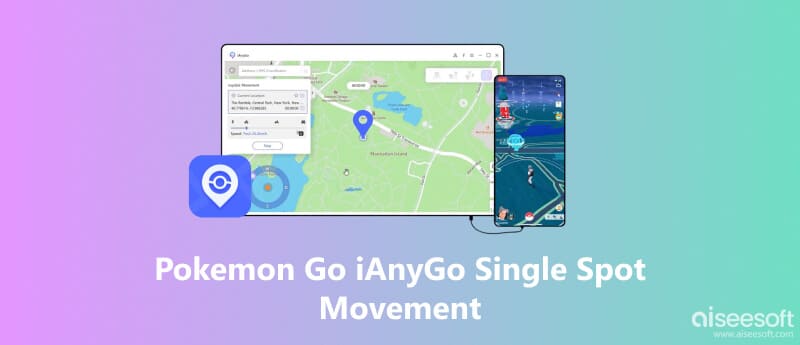
If you’re new to iAnyGo, you’ll be glad to know that it’s one of the easiest tools you can use to change your location in Pokémon GO without any complicated setup. Whether you want to explore new spots, catch region-exclusive Pokémon, or try the Pokémon Go iAnyGo single spot movement feature, iAnyGo gives you simple controls that feel almost effortless. Before we dive deeper, here’s a quick look at the main features iAnyGo brings to the table:
• Change your GPS location instantly to anywhere in the world
• Simulate action along a route or course of your choice and at your own speed
• Use 'single-spot' movement for precise, natural location changes
• Save favorite locations for quicker access
• Enjoy a basic, first-time user interface
If you have ever wished to stay in one place while still maintaining in-game activity, iAnyGo's Pokémon Go single-spot movement function is exactly what you need. It is made to act like your character "wiggle" or move a bit in a restricted place, just like a real player who is shifting around while standing in one spot. This would enable triggering spawns, hatching eggs, or keeping activities without making big jumps on the map, which is ideal for users who want movement but do not wish to risk detection due to suspicious teleporting. It is easy, discreet, and extremely helpful when you want your gaming to be as natural as possible.
Can You Use iAnygo to Track a Single Spot's Movement?
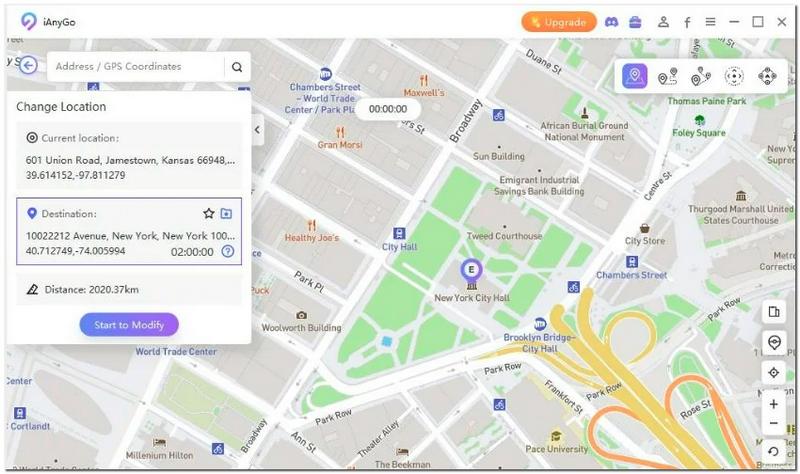
Yes, you absolutely can, and it’s surprisingly easy. iAnyGo lets you move within a tiny radius so your character looks active while staying in the same location. Here’s how you can do it:
Steps to Use Single Spot Movement in iAnyGo
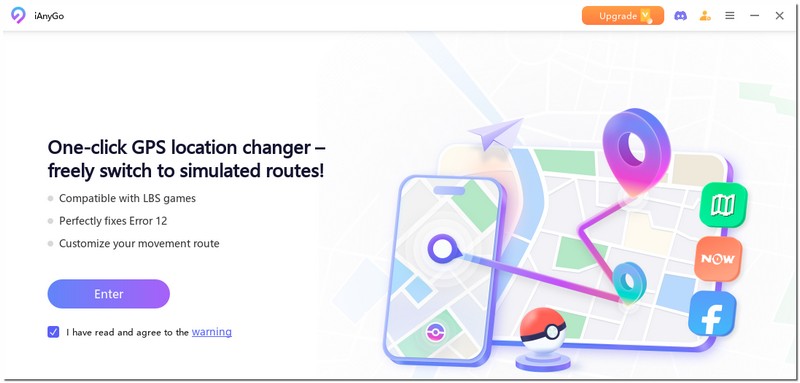

Even though iAnyGo is known for handy features like Pokémon GO iAnyGo single spot movement, there are days when the app just doesn’t cooperate. Maybe it won’t load, perhaps it freezes, or maybe it simply refuses to move your character at all. Don’t worry! These hiccups happen to a lot of players, and most of the time, a few quick fixes are all you need to get things running smoothly again.
The following are common reasons iAnyGo may stop working, ranging from basic connection problems to more complex software issues. Before you stop trying, see if you can go through these fixes.
1. Restart your phone and computer. Resetting the connection is a good idea if it disconnects unexpectedly.
2. Ensure you are using the most recent version of the software. Older builds often have movement bugs that stem from a previous release.
3. Consider the cable. A bad cable will cause a communication issue. If the cable is loose or damaged, it could also cause connection issues.
4. Disabling VPNs is good to do, and uninstalling any apps that might conflict with iAnyGo's GPS location services will also solve the issue.
5. Clear your device's previous location settings so temporary GPS issues can reset themselves.
6. If a movement mode becomes stuck, try switching modes. Switching modes can sometimes reset the tool and make it work properly.
These steps will solve most of your problems, but if you still find iAnyGo failed to detect location in Pokémon Go and is not working, it may be worth considering another option.
Aiseesoft AnyCoord is a fantastic substitute for iAnyGo if you're searching for a dependable and easy solution to shift your location in Pokémon GO. It makes your gameplay feel effortless by enabling you to teleport, simulate walking, or use single-spot mobility without requiring complex settings. AnyCoord provides you with safe and easy control of your GPS, whether you want to farm spawns, capture region-specific Pokémon, or simply keep your character active.

Downloads
100% seguro. Sem anúncios.
100% seguro. Sem anúncios.

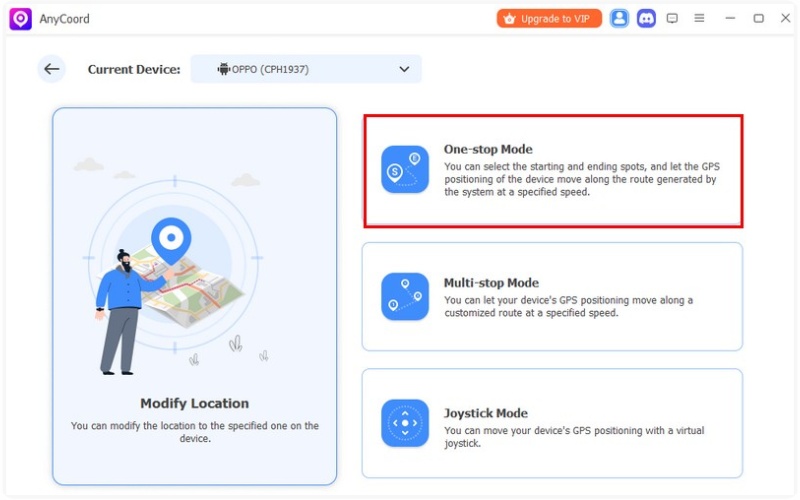
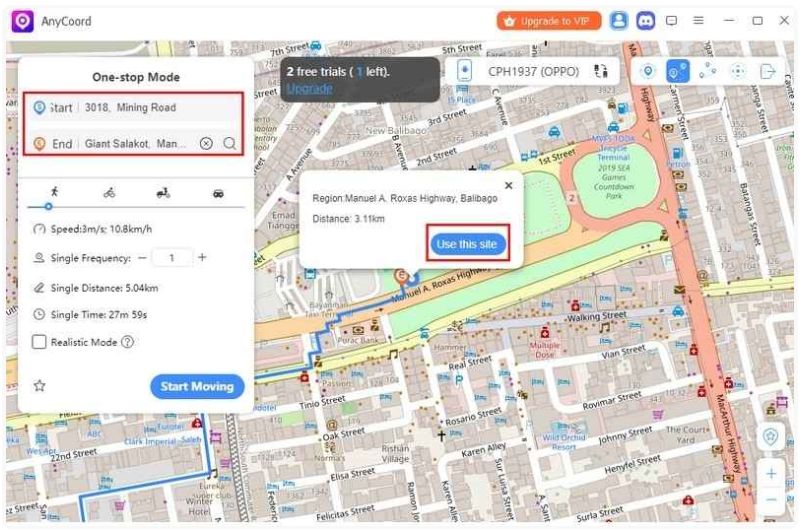
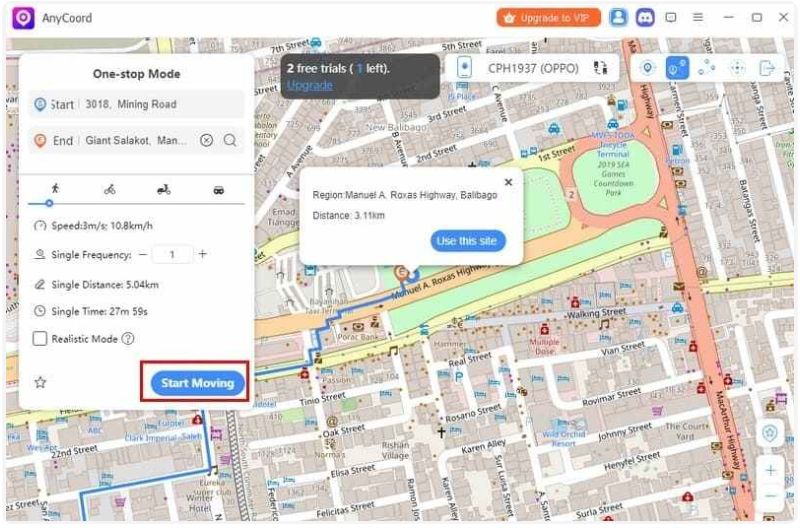
Will gyms and PokéStops refresh after using Single Spot Movement?
Yes, PokémStops, gyms, and Pokémon spawns in the vicinity will show up based on the new coordinates once you've changed your location.
Why isn’t my location changing after selecting a new spot?
Restart Pokémon GO, check the USB connection, or refresh the map in iAnyGo, or choose another Paródia do Pokémon GO. These usually fix the issue.
Can I set a return route back to my real location?
Single Spot Movement moves you to a single location, but you can manually return to your actual GPS location at any time.
Conclusão
To summarize, the new Pokémon GO iAnyGo Single Spot Movement has changed the game significantly, particularly in how the character stays active, explores new places, and catches Pokémon. iAnyGo provides very helpful tools, such as single-spot movement. However, some users may encounter glitches or restrictions. In this case, Aisee AnyCoord will appear as the best alternative for location change in Pokémon GO. It is trustworthy, user-friendly, and versatile, with teleportation, route simulation, and single-spot movement among its features, making you the master of your gameplay.
 Guia de Spoofing do iAnyGo para Pokémon Go: Tudo o que você precisa saber
Este guia de spoofing do iAnyGo para Pokémon Go aborda recursos, etapas de configuração, correções de erros e a melhor ferramenta alternativa para spoofing mais seguro em iOS e Android.
 O iAnyGo do Pokémon Go não conseguiu detectar a localização? Veja como consertar
Corrija o problema de falha na detecção de localização do iAnyGo no Pokémon Go com etapas fáceis e descubra um alterador de localização mais confiável para uma jogabilidade mais suave.
 [Resolvido] Como consertar Pokemon Go GPS Signal Not Found 11 Error no iPhone
Por que meu Pokemon Go diz que o sinal de GPS não foi encontrado? Como faço para corrigir o sinal de GPS não encontrado 11 Pokemon Go? Este post compartilha 5 dicas simples para corrigir o sinal de GPS do Pokemon Go não encontrado 11 no iPhone.
O Aiseesoft AnyCoord pode ajudá-lo a ocultar, falsificar ou alterar sua localização GPS para qualquer outro lugar com facilidade. Você pode até planejar uma rota em movimento, se necessário.
100% seguro. Sem anúncios.
100% seguro. Sem anúncios.

*Campo obrigatório
*Por favor, insira um e-mail válido