Aprovado por mais de 50,000 usuários: Aiseesoft Android Unlocker
 100% seguro. Sem anúncios.
100% seguro. Sem anúncios.
Conteúdo
Já aconteceu de você pegar seu Samsung S22 Ultra e perceber que esqueceu completamente a senha, o PIN ou o padrão de desbloqueio? Não se preocupe, eu também já passei por isso. Primeiro vem o pânico, depois as tentativas desesperadas de adivinhar a senha… e então a constatação de que você acabou de se bloquear ainda mais.
Felizmente, Desbloqueando um Samsung S22 Ultra Não é tão assustador quanto parece. Ao longo do tempo, experimentamos vários métodos: alguns rápidos, outros um pouco técnicos e alguns que nos salvaram quando pensávamos que o telefone estava perdido para sempre. Neste guia, vamos mostrar 4 maneiras fáceis de recuperar o acesso, desde softwares profissionais até ferramentas nativas da Samsung/Google, para que você aprenda exatamente como desbloquear o Samsung S22 Ultra e volte a navegar no TikTok (ou, quem sabe, fazer algo produtivo).

Se você busca um método simples e confiável, usar uma ferramenta profissional de desbloqueio costuma ser a solução mais fácil. Um programa que eu mesmo já testei é o Desbloqueador Android AiseesoftE nunca me decepcionou quando precisei lidar com senhas esquecidas, PINs ou até mesmo problemas com impressões digitais.
É uma opção premium e segura que supera as limitações dos métodos gratuitos. É a solução ideal quando você está completamente bloqueado e precisa de uma garantia de sucesso.
| Característica | Por que isso é importante para o seu S22 Ultra |
| Bloqueio da tela bypass | Remove PINs, padrões, senhas, impressões digitais e até reconhecimento facial em minutos. Essencial se você esquecer sua senha principal e precisar saber como desbloquear o Samsung S22 sem senha. |
| Remoção de PRFV | Projetada especificamente para remover o bloqueio FRP do Google, que é bastante complexo, sem a necessidade da senha. Se você comprou um celular de alguém que não realizou uma restauração de fábrica adequada, esta é a ferramenta ideal para desbloquear o FRP do Samsung S22. |
| Alta taxa de sucesso | Por ser um programa dedicado, geralmente apresenta uma taxa de sucesso maior do que depender de explorações manuais ou configurações de conta que podem não estar ativadas. |
Passos para usar o Aiseesoft Android Unlocker:
100% seguro. Sem anúncios.
100% seguro. Sem anúncios.
Inicie o software e conecte seu Samsung S22 Ultra usando um cabo USB de boa qualidade.
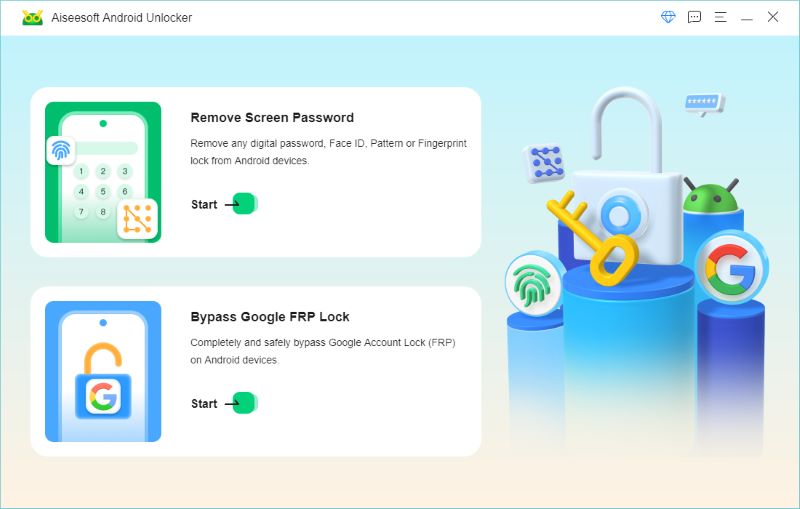
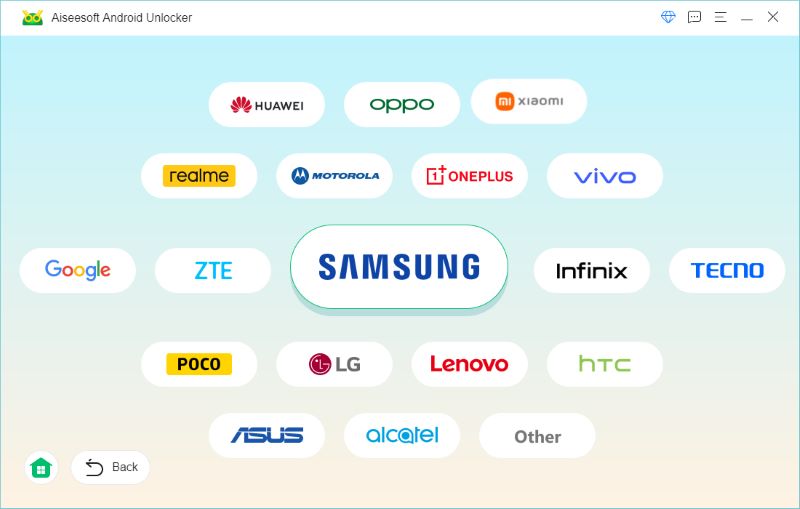
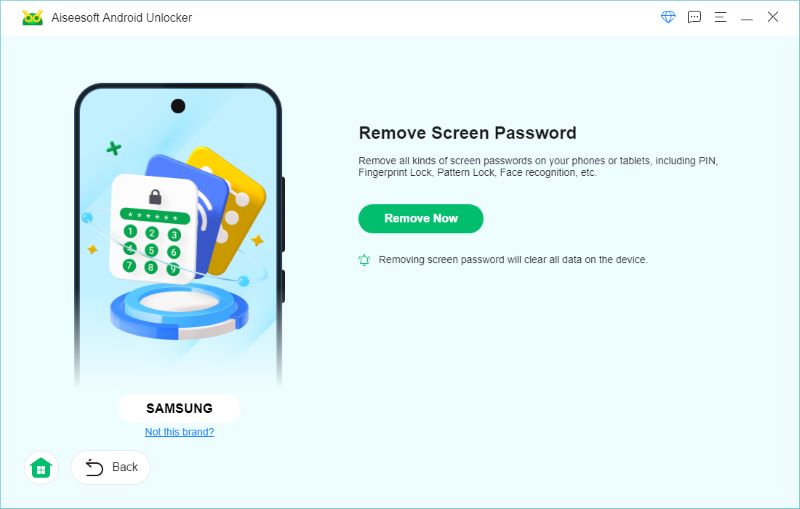
Assim que o processo terminar, seu telefone será reiniciado e o bloqueio desaparecerá.
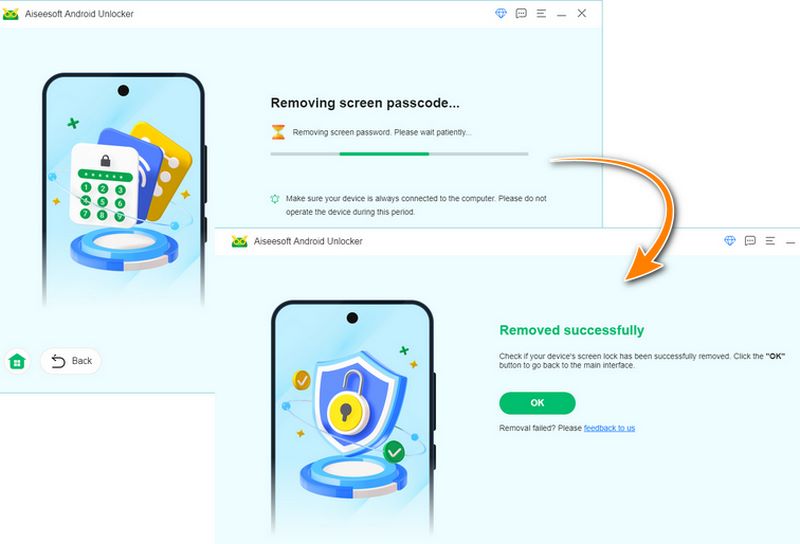
Pronto, agora seu Samsung S22 Ultra deve estar acessível novamente.
O Gerenciador de Dispositivos Android do Google (agora chamado Encontrar My Device) é outro método útil. Esta opção funciona apenas se:
• Seu telefone está conectado à internet.
• Sua conta do Google está conectada.
• A opção Encontrar meu dispositivo está ativada.
Passos para desbloquear usando o Encontre Meu Dispositivo do Google:

O 'Apagar DispositivoEssa opção restaurará remotamente as configurações de fábrica do seu telefone, apagando todos os dados (fotos, aplicativos, configurações), mas removendo o bloqueio de tela esquecido. É a única opção disponível pelo serviço do Google para esse tipo de bloqueio, portanto, esteja preparado para uma possível perda de dados.
Além disso, recomenda-se que você crie o hábito de fazer backups do seu celular Samsung para evitar a perda de dados.
Se você é fiel ao ecossistema da Samsung como eu, o recurso Encontrar meu celular é uma mão na roda. Ele funciona mesmo quando as opções do Google falham.
Requisitos
• Você precisa ter uma conta Samsung vinculada ao seu S22 Ultra.
• O telefone precisa estar conectado à internet.
• O recurso de desbloqueio remoto deve estar ativado nas configurações do seu telefone antes que você seja bloqueado (Configurações > Biometria e segurança > Encontrar meu celular > Desbloqueio remoto).
Passos para desbloquear usando o Samsung Find My Mobile:

Se a operação for bem-sucedida, o bloqueio de tela (padrão, PIN ou senha) será removido remotamente do seu telefone sem apagar seus dados!
Acredite em mim, se você ainda não fez isso, entre na sua conta Samsung no seu celular e ative o recurso de Desbloqueio Remoto agora mesmo! É a diferença entre salvar todos os seus dados e perder tudo se você esquecer sua senha novamente.
Se você não conseguir acessar suas contas Samsung ou Google, ou se os serviços do Find My não estiverem funcionando, o método final, e mais drástico, disponível gratuitamente, é realizar uma restauração física de fábrica usando as teclas de hardware.
AVISO: Antes de prosseguir com estes Passos, certifique-se de que não há dados importantes no telefone. Este método apagará completamente tudo, incluindo fotos, contatos, aplicativos e configurações, como se fosse um telefone novo. A perda de dados é garantida.
Passos para restaurar as configurações de fábrica do Samsung S22 Ultra:
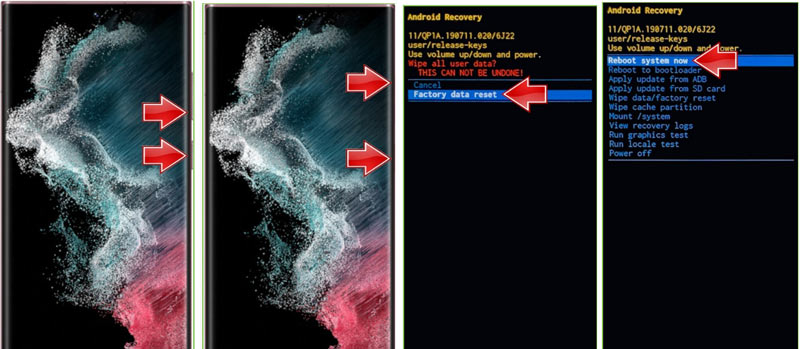
Seu telefone agora inicializará como um dispositivo novo, sem a senha de tela antiga. No entanto, você provavelmente ainda precisará das credenciais da conta do Google para o bloqueio FRP, caso não tenha removido a conta anteriormente!
Se você estiver preso no FRP, precisará de um Desbloqueio Samsung S22 FRP Uma ferramenta como o modo de desbloqueio FRP da Aiseesoft ou outra solução de software profissional.
Qual é o código de desbloqueio gratuito da Samsung?
Não existe um código de desbloqueio universal e gratuito para celulares Samsung. As operadoras de telefonia móvel às vezes fornecem códigos de desbloqueio, mas apenas para aparelhos que atendam aos requisitos de elegibilidade (totalmente pagos, não bloqueados, etc.).
É possível contornar o bloqueio FRP em um dispositivo Samsung?
Sim, mas não através das configurações básicas do sistema. Você precisará de uma ferramenta de desbloqueio FRP para o Samsung S22 Ultra ou dos dados de login da sua conta Google. Um software profissional é a opção mais confiável.
Como desbloquear o bloqueio de rede do Samsung S22 Ultra?
Você pode:
• Solicite um código de desbloqueio à sua operadora.
• Utilize um serviço profissional de desbloqueio de operadora
• Utilize ferramentas de desbloqueio baseadas em software (use apenas serviços confiáveis para evitar danos)
Conclusão
Ficar bloqueado no seu Samsung S22 Ultra é estressante, mas não precisa ser o fim do mundo. Seja por causa de uma senha esquecida, bloqueio FRP ou até mesmo um bloqueio de rede, existem vários métodos seguros e eficazes para ajudá-lo a recuperar o acesso.
Desde ferramentas como o Aiseesoft Android Unlocker até opções integradas como o Encontrar Meu Dispositivo do Google e o Encontrar Meu Celular da Samsung, você tem diversas soluções confiáveis. Lembre-se apenas de manter backups, ativar o Encontrar Meu Celular e armazenar suas senhas em um local seguro.
Esperamos que este guia tenha te ajudado. Desbloqueie o Samsung S22 Ultra Com facilidade e sem a espiral de pânico que senti da primeira vez que aconteceu comigo!
 Esqueceu a senha da Samsung: como acessar arquivos do Android
Esqueceu a senha da Samsung? Como você pode acessar e fazer backup de arquivos Android do dispositivo Samsung bloqueado? Aqui você pode encontrar o Broken Android Data Recovery para ajudá-lo.
 Desbloqueie a Samsung: quebre as restrições de fábrica do telefone Samsung
O que é bootloader? Como desbloquear o bootloader em um telefone Samsung Galaxy? Aprenda com este artigo sobre o desbloqueio do bootloader da Samsung.
 Samsung Password Manager - Veja senhas salvas no Samsung
Onde as senhas são armazenadas no meu telefone Samsung? A Samsung tem um gerenciador de senhas? Como acessar o gerenciador de senhas Samsung? Saiba mais sobre o Samsung Pass.
Compatível com todas as versões do sistema operacional Android, este desbloqueador oferece uma maneira fácil e segura de remover qualquer tipo de bloqueio de tela e ignorar o FRP rapidamente.
100% seguro. Sem anúncios.
100% seguro. Sem anúncios.

*Campo obrigatório
*Por favor, insira um e-mail válido