Se você quer saber como recuperar suas mensagens de texto apagadas, como o Android é um sistema operacional personalizado, não existe um único método que funcione em todos os aparelhos. A possibilidade de restaurar suas mensagens dependerá, em grande parte, do aplicativo de mensagens instalado no seu celular, da marca do aparelho e, principalmente, se você fez backup das suas mensagens. Primeiro, vou apresentar detalhes e métodos sobre... Como recuperar SMS apagados no Android, começando pelos recursos integrados do Android e métodos de recuperação de mensagens, como a partir de um backup, seguidos por software de recuperação e outras soluções alternativas.
Se você usa o aplicativo Mensagens da Samsung, verifique primeiro a Lixeira antes de procurar outras opções. As mensagens excluídas do aplicativo podem ser encontradas lá por um período de 30 dias, o que é uma maneira rápida de recuperá-las.
Como recuperar SMS apagados do Android usando o aplicativo Mensagens da Samsung
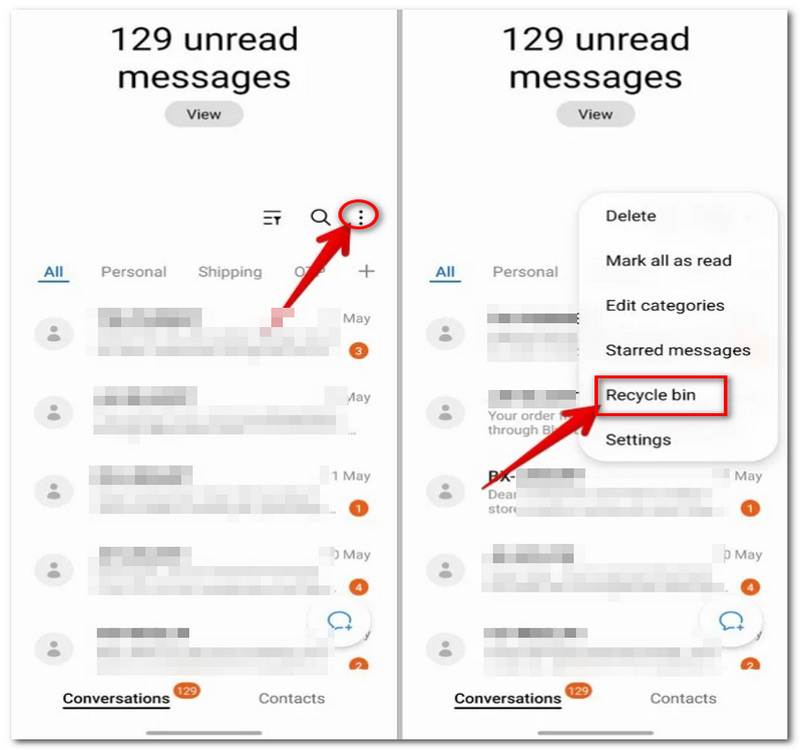
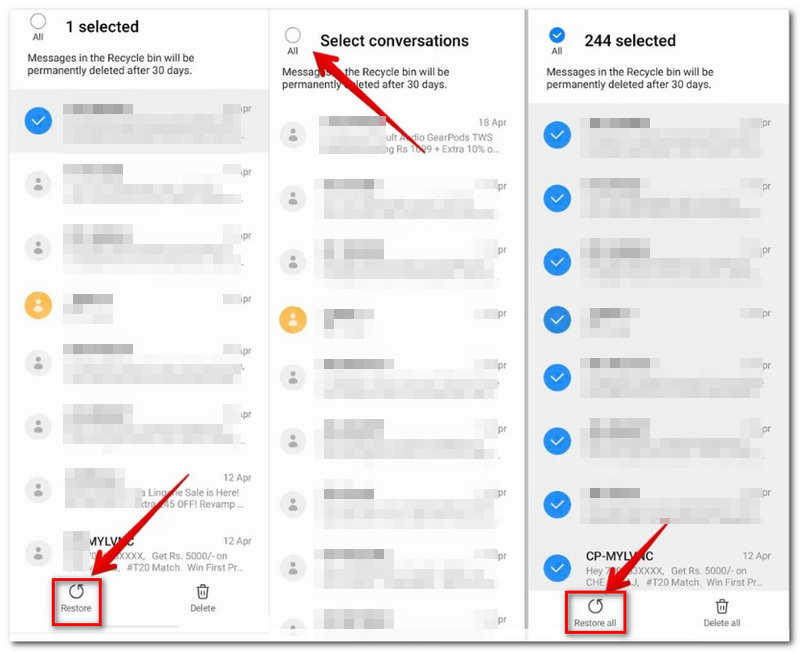
Observe que esse recurso só pode ser usado enquanto a mensagem ainda estiver na Lixeira. Após um período de 30 dias, ela será excluída permanentemente. Além disso, as opções disponíveis dependerão em grande parte do modelo do Galaxy que você está usando e da versão do seu software.
Se você tiver backups do seu celular Android de antes da perda das mensagens apagadas, poderá recuperá-las a partir do backup da sua Conta do Google. O Google faz backup de SMS e MMS de dispositivos Android, mas geralmente os restaura quando o telefone é configurado, após a compra de um novo aparelho ou após uma restauração de fábrica.
Como recuperar mensagens de texto apagadas em um celular Android usando o Backup do Google
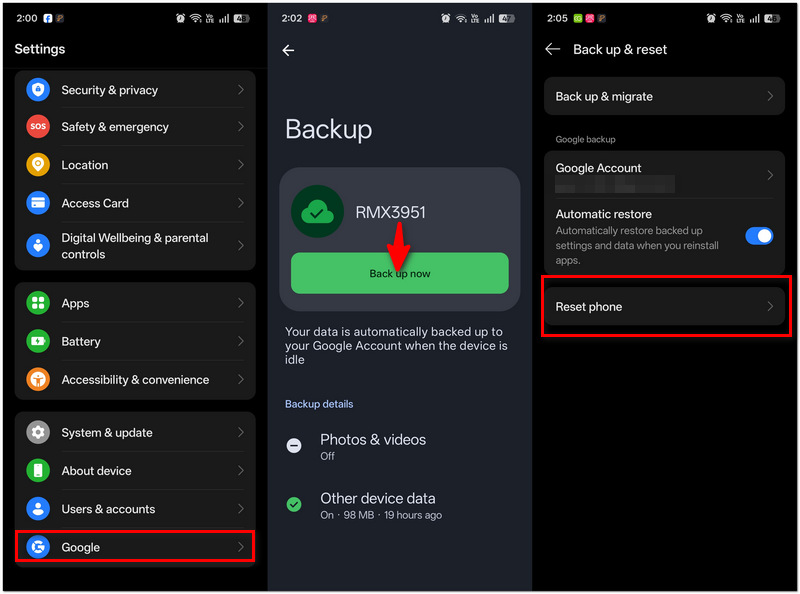
Importante: A restauração só é possível a partir das mensagens incluídas no backup. Mensagens enviadas ou recebidas após o último backup provavelmente não serão recuperadas. Seu novo telefone Android (ou o telefone redefinido) deve executar pelo menos a mesma versão do Android ou uma versão mais recente do que a usada para criar o backup. Backup de SMS.
As grandes operadoras de telecomunicações costumavam oferecer serviços de backup de mensagens para seus assinantes, como o AT&T Messages Backup & Sync (AT&TTMB) e o Verizon Messages (Message+). No entanto, ambos os serviços foram descontinuados em 2024, o que significa que não são mais opções viáveis para recuperar mensagens apagadas.
Agora, a única coisa que você pode fazer é usar o SMS Backup & Restore, um aplicativo independente para Android que permite arquivar mensagens SMS/MMS no armazenamento do dispositivo ou na nuvem, como o Google Drive. Ao procurar como recuperar mensagens de texto apagadas em um telefone Android, este aplicativo oferece uma opção, desde que suas mensagens tenham sido previamente salvas em backup.
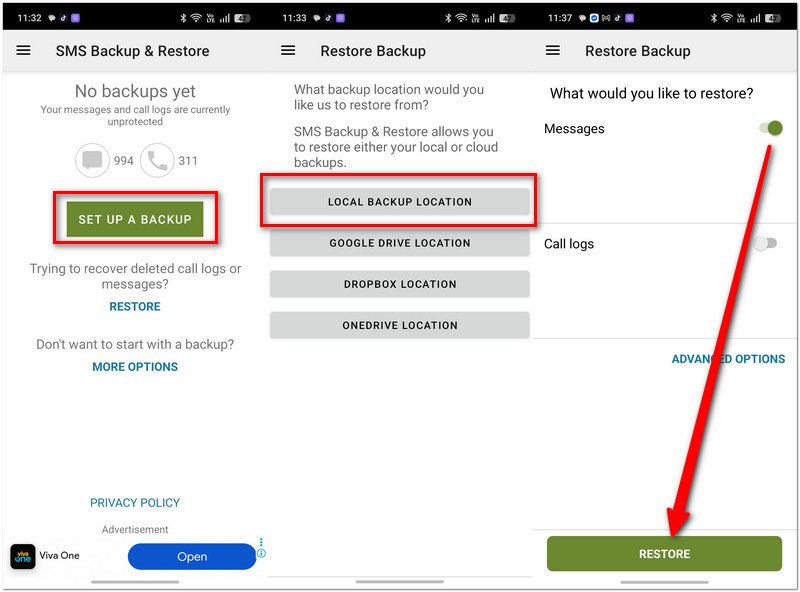
Sem um backup, SMS Backup & Restore Não é possível pesquisar mensagens que já foram apagadas. Somente as mensagens armazenadas em um backup anterior são restauradas.
Sem um backup para restaurar, Recuperação de dados Android Aiseesoft FoneLab Oferece uma segunda opção. Permite a recuperação de dados apagados armazenados diretamente em um dispositivo Android, incluindo mensagens, para que você possa visualizar os resultados da verificação antes de tomar uma decisão final sobre a restauração dos itens perdidos.
Downloads
Recuperação de dados do Aiseesoft Android
 100% seguro. Sem anúncios.
100% seguro. Sem anúncios.
Como recuperar SMS apagados no Android com o Aiseesoft FoneLab Android Data Recovery
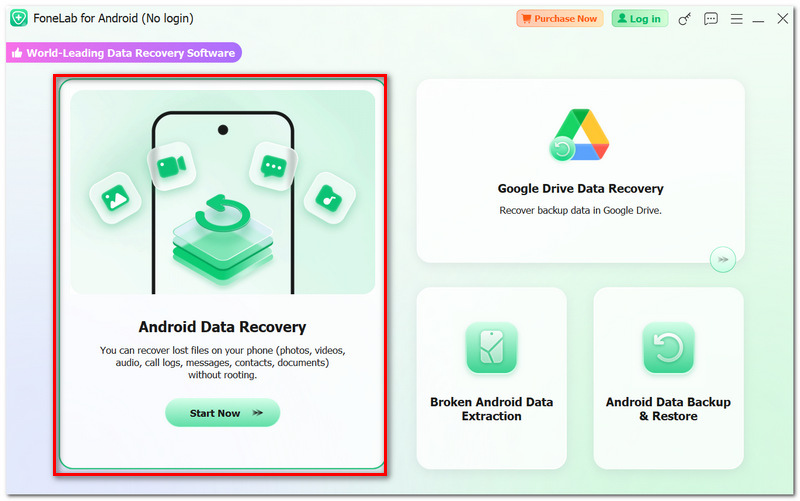
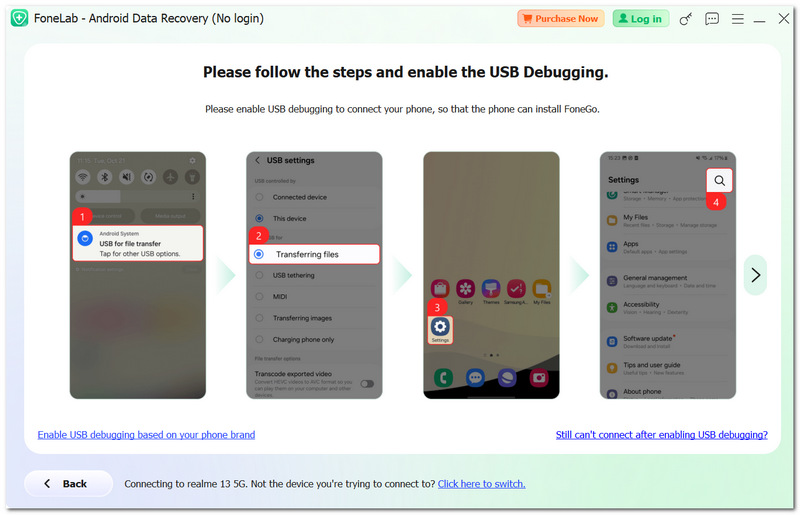
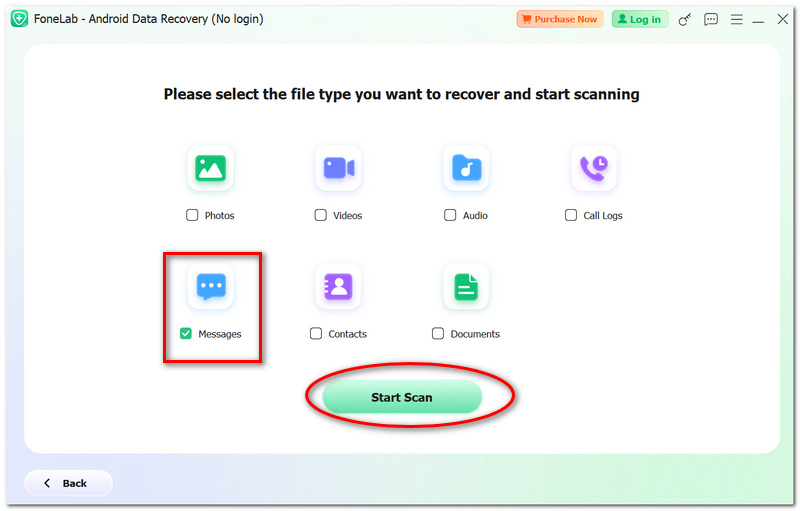
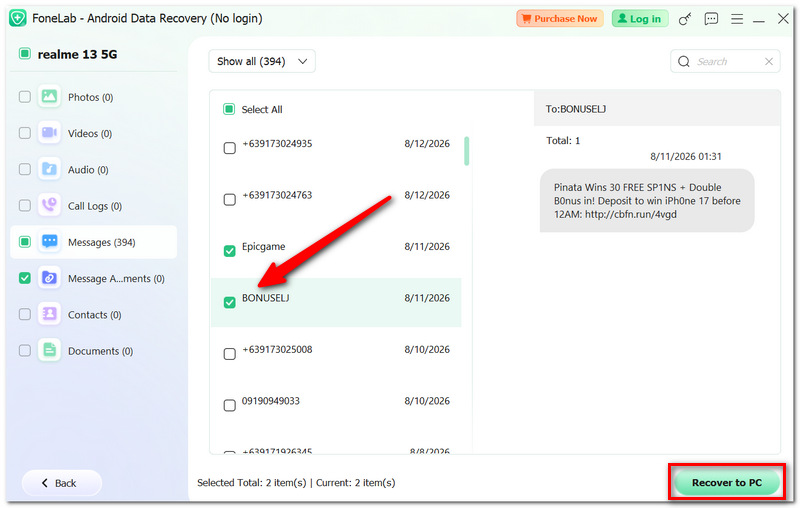
Não demore muito para iniciar o procedimento de recuperação e evite adicionar novos dados (arquivos) ao mesmo dispositivo, pois isso poderia sobrescrever os dados perdidos.
Se as suas mensagens apagadas estiverem em um backup anterior do Google One, você poderá recuperá-las desligando o telefone e configurando-o novamente usando esse backup. Vale ressaltar que a restauração de fábrica apagará todo o conteúdo presente no seu telefone atualmente.
Para recuperar mensagens SMS apagadas em um celular Android, siga estes Passos:
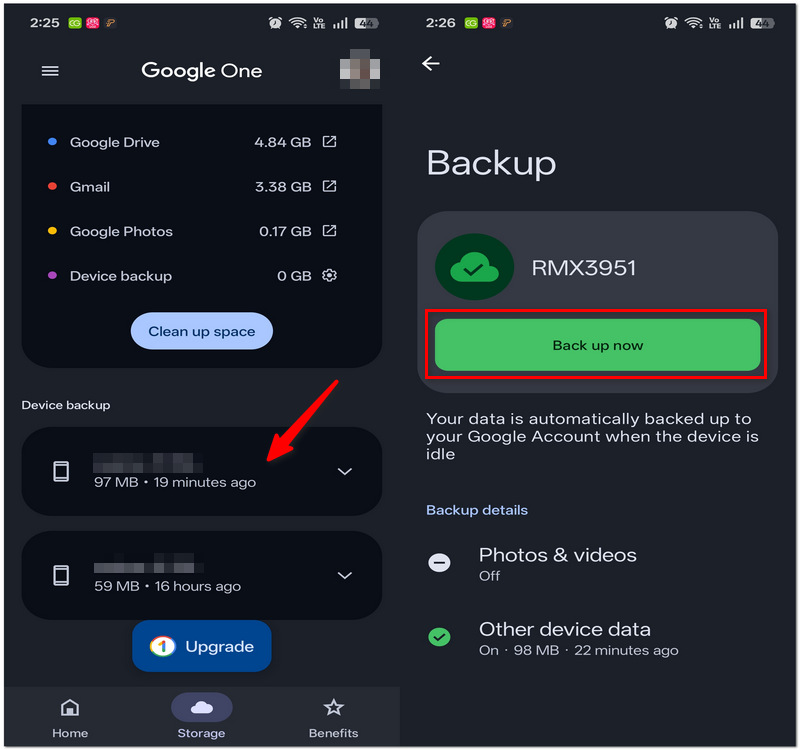
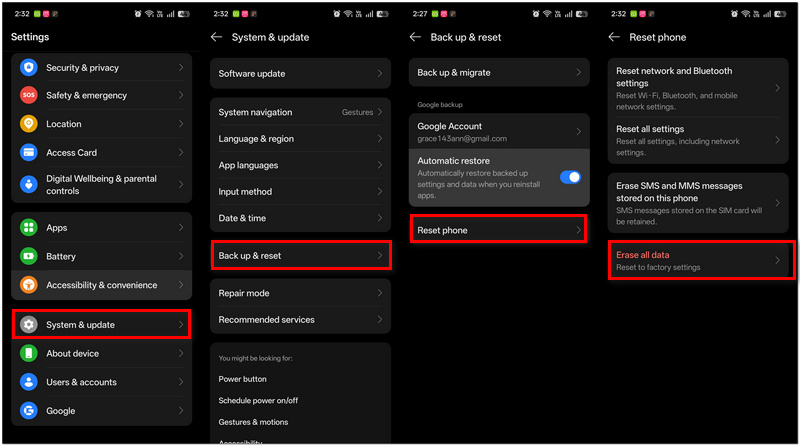
Importante: Essa restauração é feita por meio da recuperação durante a fase de configuração do dispositivo. O Google One não é um método para recuperar seletivamente conversas excluídas. Itens criados após a data do backup provavelmente não serão exibidos.
Embora sua operadora de celular possa armazenar alguns detalhes relacionados às suas mensagens, como remetente, data e horário de envio ou leitura, o conteúdo das mensagens raramente é armazenado. Mesmo assim, entender como recuperar mensagens SMS apagadas no Android pode ajudar.
Este método serve apenas para confirmar o uso da mensagem, mas não para restaurar a conversa apagada.
Após apagar a conversa apenas do seu celular, suas mensagens podem não ser apagadas do celular da outra pessoa, que ainda pode tê-las. Para recuperar seus SMS apagados no Android, o método mais fácil é pedir para a outra pessoa encaminhar as mensagens para você ou enviar capturas de tela das mensagens.
A recuperação de mensagens ainda é possível se eu só me lembrar de partes da nossa conversa?
Não, normalmente uma ferramenta de recuperação requer o arquivo físico da mensagem ou um backup para poder restaurá-la. Saber o remetente, o destinatário ou o texto da mensagem não será suficiente para recuperar toda a conversa.
Apagar e reinserir o cartão SIM pode ajudar a recuperar mensagens apagadas?
Não, um cartão SIM geralmente não é uma cópia do seu histórico de mensagens em um Android. Mesmo que você remova o SIM ou o coloque de volta, as mensagens que foram apagadas do telefone não serão restauradas.
É verdade que, ao apagar uma mensagem, as fotos ou anexos também são apagados?
As fotos ou anexos em mensagens apagadas nem sempre são removidos fisicamente da mesma forma. Por exemplo, as fotos podem estar armazenadas separadamente no seu dispositivo, e você terá que procurar na sua Galeria, no aplicativo Arquivos ou verificar seus backups caso seja o anexo que você realmente deseja.
Conclusão
Embora possa ser bastante complicado, recuperar mensagens de texto apagadas em um telefone Android é realmente possível, e existem alguns métodos que podem ser tentados antes de desistir completamente. Além das opções de restauração de fábrica e backup, você agora entende Como recuperar SMS apagados do Android que foram apagados e qual método é adequado para diferentes casos.
 Os 10 melhores aplicativos de mensagens de texto para Android e iPhone em 2026
Descubra os melhores aplicativos de mensagens de texto para Android e iPhone, incluindo aplicativos seguros, com RCS e criptografados. Compare recursos, vantagens e desvantagens.
 [100% Útil] Ver e verificar mensagens de texto
Como verificar mensagem de texto? Este artigo se concentra principalmente em como verificar as mensagens de texto do iPhone/Android no computador ou online.
 Os 6 principais aplicativos de bloqueio de mensagens para proteger suas mensagens de texto no Android
Como adicionar um bloqueio de mensagem no meu Android/iPhone? Este artigo apresenta 6 ótimos aplicativos de bloqueio de mensagens para ajudá-lo a proteger a privacidade.
Recuperar Dados Excluídos do Android
Recuperar arquivos excluídos do AndroidRecuperar Mensagens de Texto Excluídas AndroidRecuperar textos excluídos AndroidRecuperar Fotos Excluídas AndroidRecuperar vídeos excluídos do AndroidRecuperar contatos excluídos do AndroidRecuperar favoritos excluídos do Android
O melhor software de recuperação de dados do Android para recuperar arquivos excluídos como SMS, contatos, registros de chamadas, documentos, etc. do telefone/cartão SD/tablet Android no Windows/Mac.
100% seguro. Sem anúncios.
100% seguro. Sem anúncios.

*Campo obrigatório
*Por favor, insira um e-mail válido