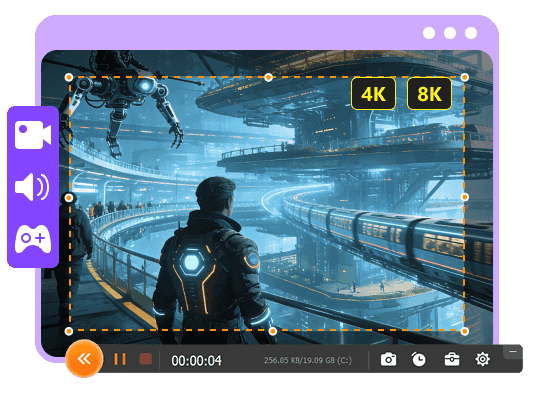
Aiseesoft Screen Recorder
 100% seguro. Sem anúncios.
100% seguro. Sem anúncios.
For different practical and creative purposes, you need to record your device’s screen. Screen recording is a good and direct way to capture, share, or preserve digital information that might be difficult to document in other ways.
Conhecimento how to screen record on a laptop is an essential digital skill across learning, work, and daily life.
Whether you want to record an online meeting, capture a funny gameplay moment, or create a software tutorial, you should make high-quality recordings first. This comprehensive guide shares eight major methods to record your laptop screen, including free built-in tools, a default player with recording features, and powerful third-party software.
In most cases, you don’t just need to capture the laptop screen. You want to record all content displayed on your computer, which often includes the screen, audio, and even webcam.
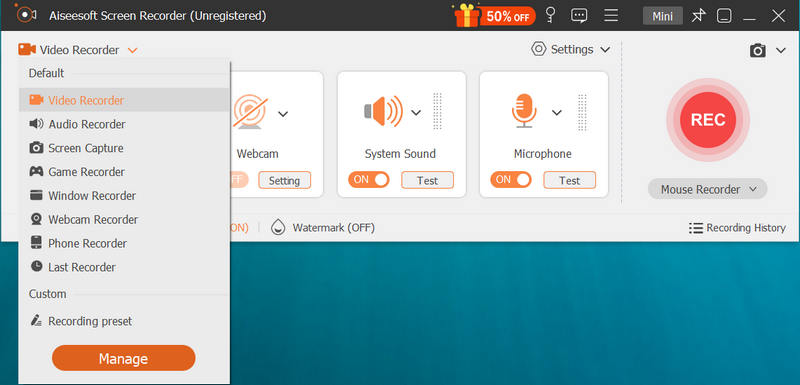
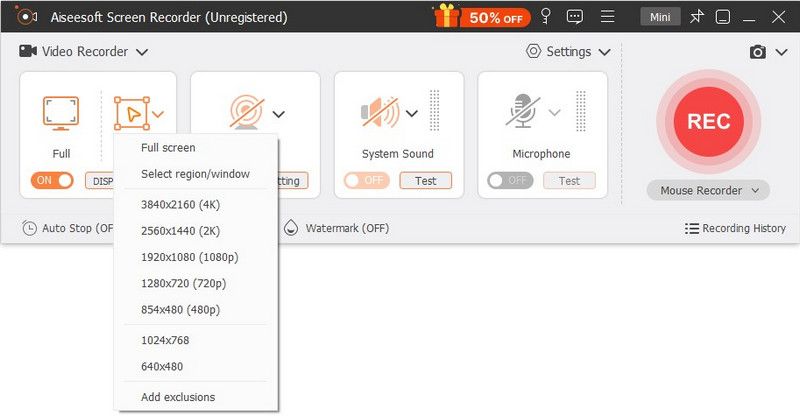
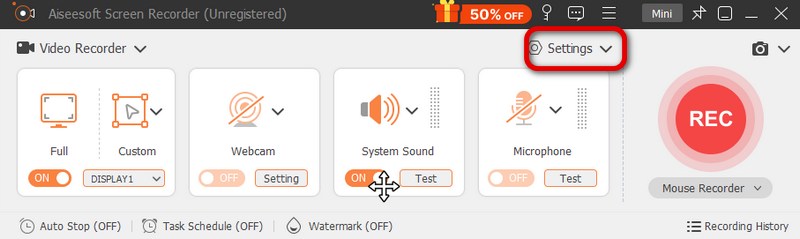
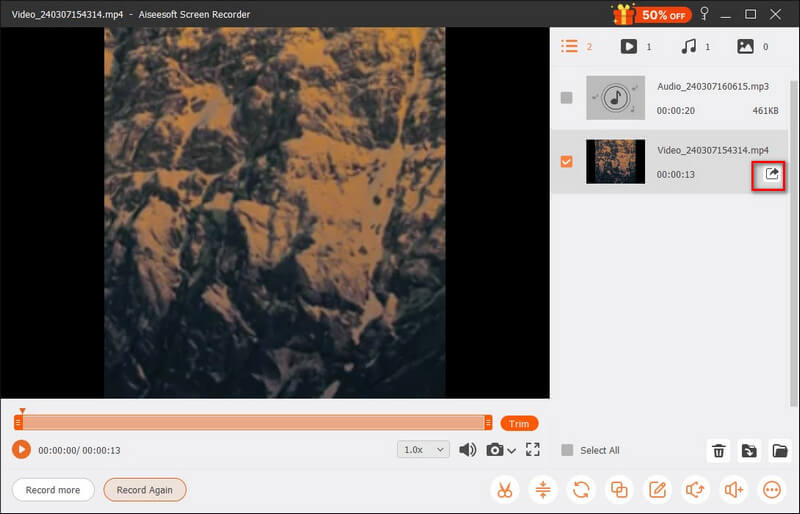
If you are seeking a powerful, all-in-one recorder that can handle various capture tasks, dedicated third-party software like Aiseesoft Screen Recorder proves to be a great choice. It is available for Windows and Mac users who need stable and high-quality recordings.
Downloads
100% seguro. Sem anúncios.
100% seguro. Sem anúncios.
Aiseesoft Screen Recorder is specially designed for easy and quick recording. That is ideal for most users who want to easily capture their screen with high quality and desired format, including content creators, gamers, educators, professionals, and most general users. It offers a simple solution to product tutorial videos, presentation recordings, gaming victory moments, and more.
If you are using a Windows laptop like HP, Dell, Acer, ASUS, Lenovo, or MSI and want to capture its screen, you can rely on its built-in, free methods.
Barra de jogos do Xbox is pre-installed on Windows 10 and 11 laptops. It is a gaming overlay with a screen recorder and other useful widgets. It is ideal for quick captures, mainly for recording gameplay clips. This built-in Windows laptop recorder requires no setup.
Melhor para: Game Bar is ideal for most Windows users, mainly gamers, to quickly capture gameplay clips.
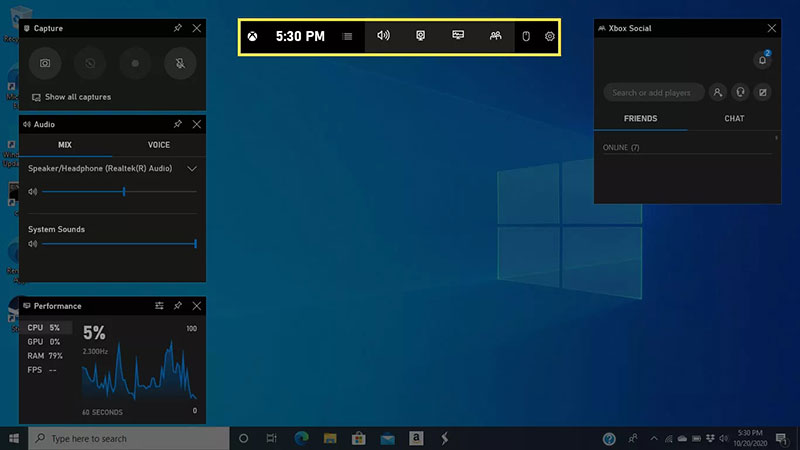
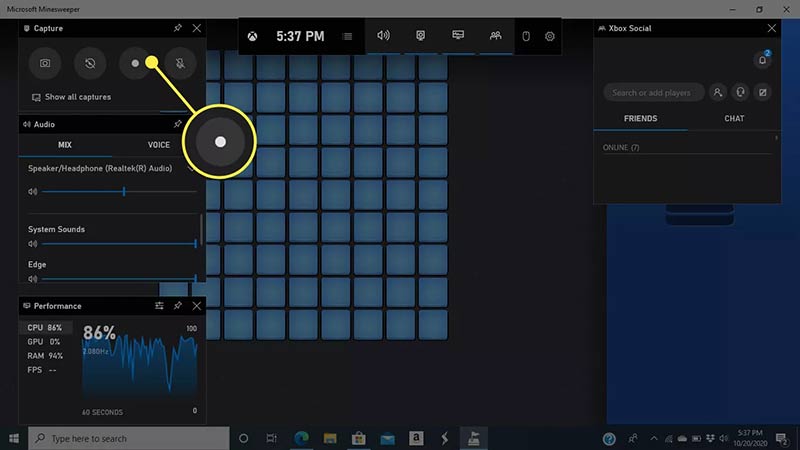
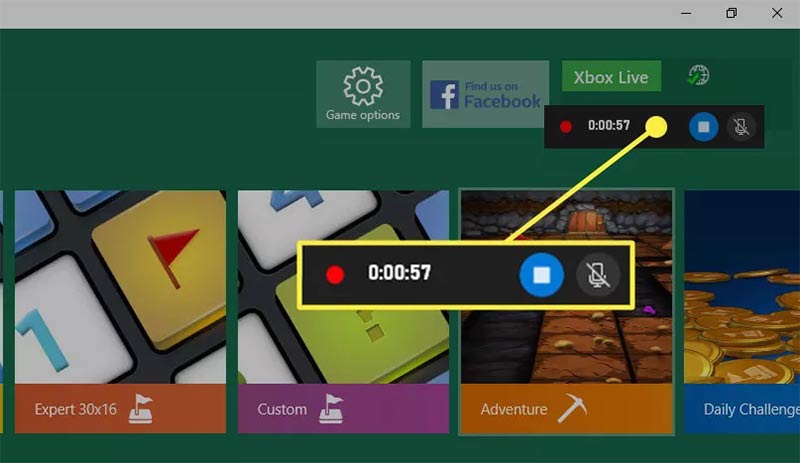
As you can see, Xbox Game Bar does not capture your voice from the microphone by default. If you need to record microphone sound, you should turn on the microphone in the Áudio widget of the Game Bar before recording. What’s more, you can access the Configurações panel by clicking the Acessorios icon. Customize various recording settings based on your specific needs.
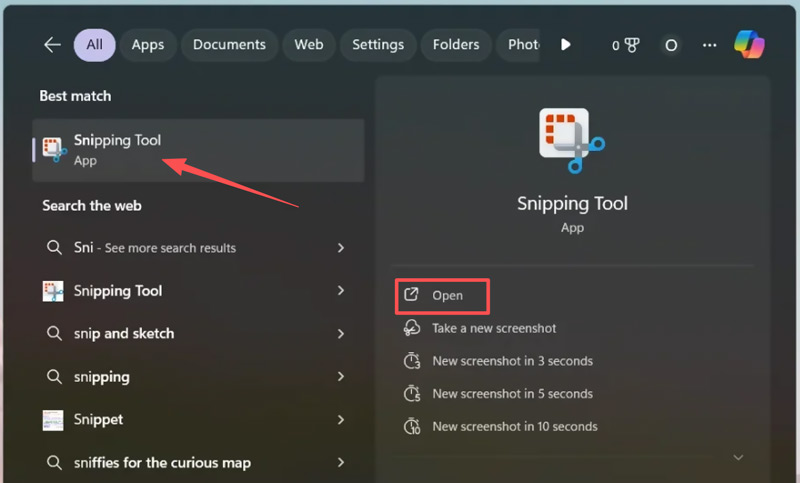
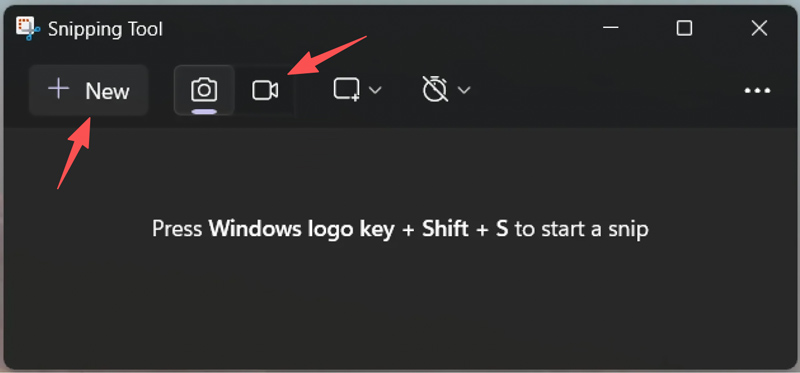
If your laptop runs Windows 11, you can use the built-in Ferramenta de Recorte to capture your computer screen with ease. This screenshot tool is updated in Windows 11 to have basic screen recording functionality.
Melhor para: Recording a specific window or area on a Windows 11 laptop and exporting short clips.
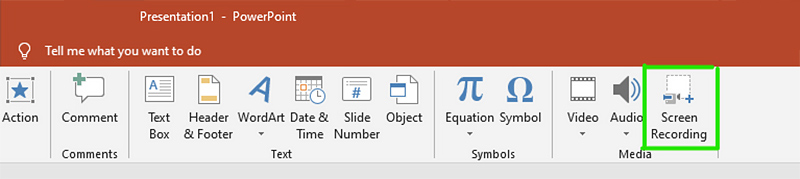
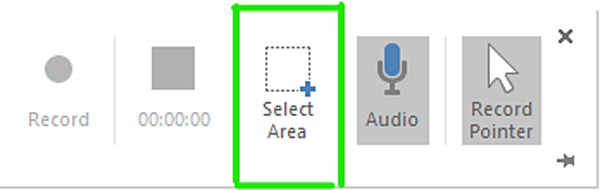
If you use a relatively newer version of Microsoft PowerPoint (like PowerPoint 2016 or later), you can use its built-in screen recording feature to capture your computer screen and then insert recordings directly into your slides. This recorder tool is integrated seamlessly into PowerPoint for making a presentation.
Melhor para: Creating instructional videos or adding personal narration. It is ideal to capture the screen and directly embed the recorded clips into a PowerPoint presentation.

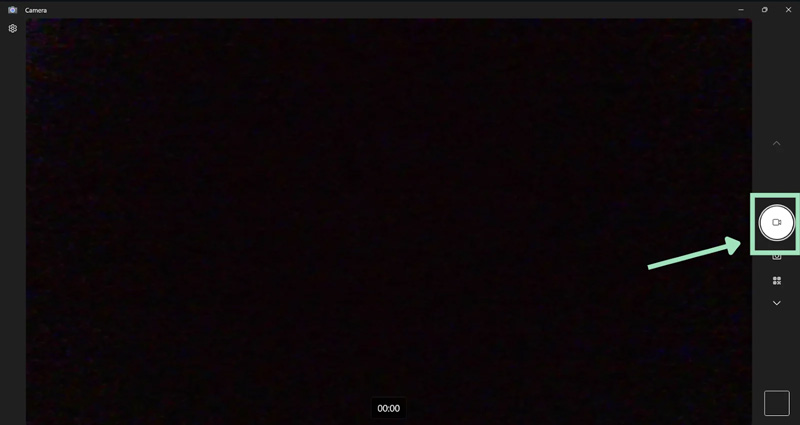
To quickly capture your webcam feed, you can use the Câmara app in Windows. The built-in tool is mainly designed for photos and videos. It can help you make pure webcam recordings without screen capture.
Melhor para: Recording a webcam video or making a vlog-style clip directly on your laptop.
As a Mac user, when you need to capture the screen, you can rely on both its built-in screen recording tools and third-party recorders.
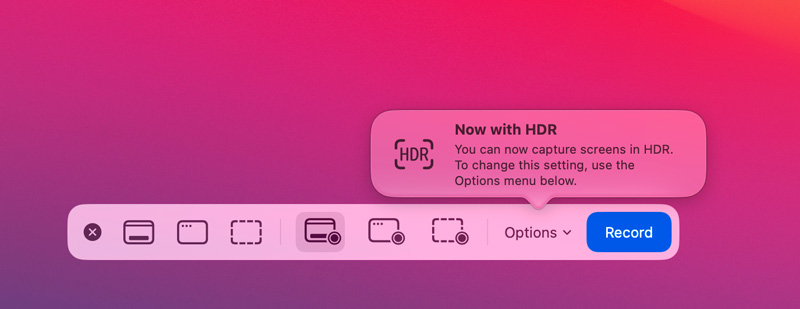
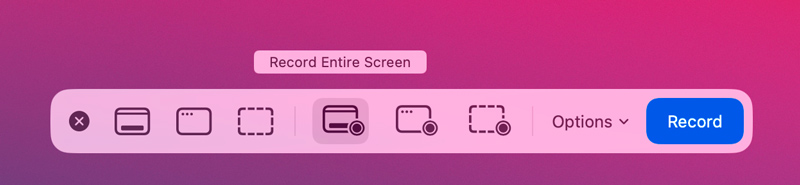
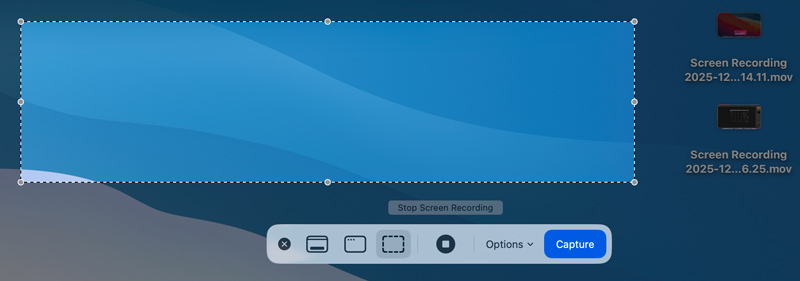
MacOS has a built-in Barra de ferramentas de captura de tela for users to quickly start screen recordings via a keyboard shortcut. It offers several options for quick screenshots and video recordings.
Melhor para: Using the Screenshot Toolbar to screen record is the recommended way for most Mac users. It can be the easiest way to record the full Mac screen or a selected region without opening any apps.
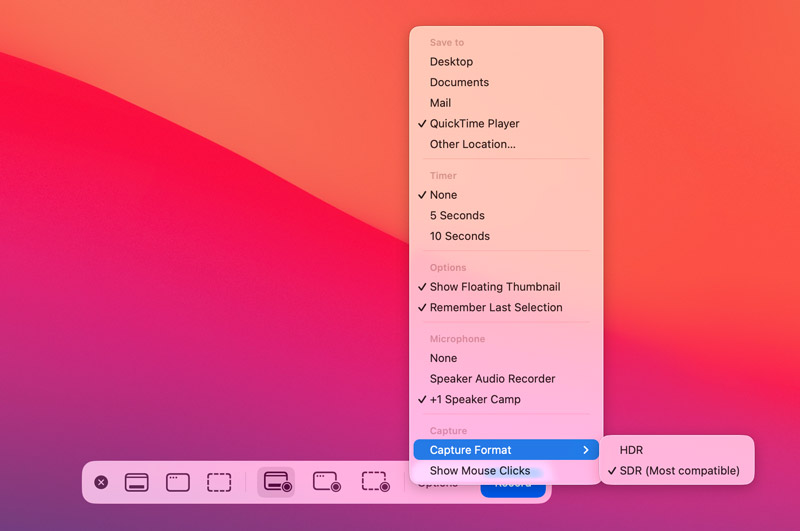
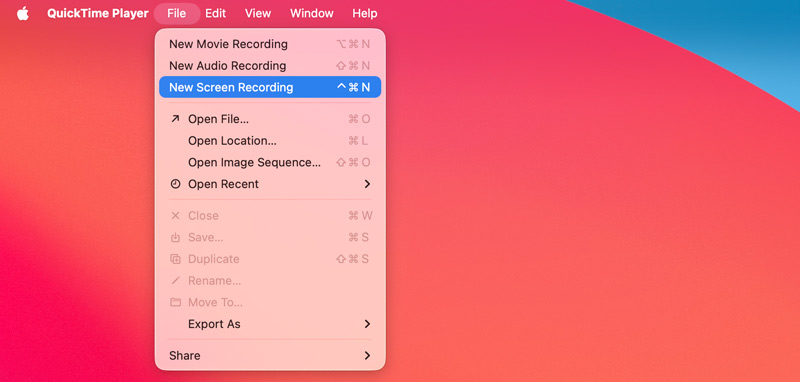
QuickTime player is pre-installed on every Mac to handle various media file playing tasks. It also has excellent screen recording capabilities.
Melhor para: Melhor para: Stable screen recordings on Mac, especially for users who need microphone narration.
Tear is a popular cloud-based recorder that lets you record your computer screen, voice, system audio, and webcam in high-quality up to 4K. It carries basic editing features to trim and combine your recordings.
Melhor para: Recording screen and voice to create shareable tutorials and give feedback.
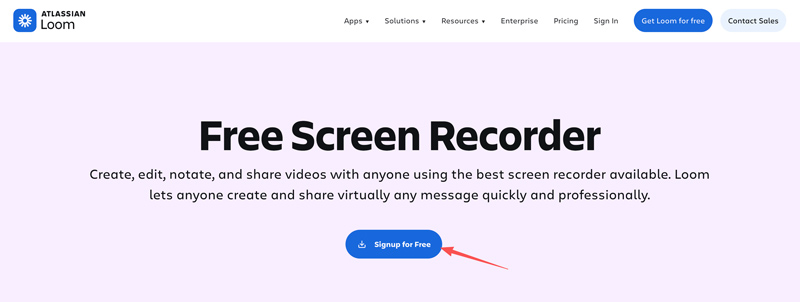
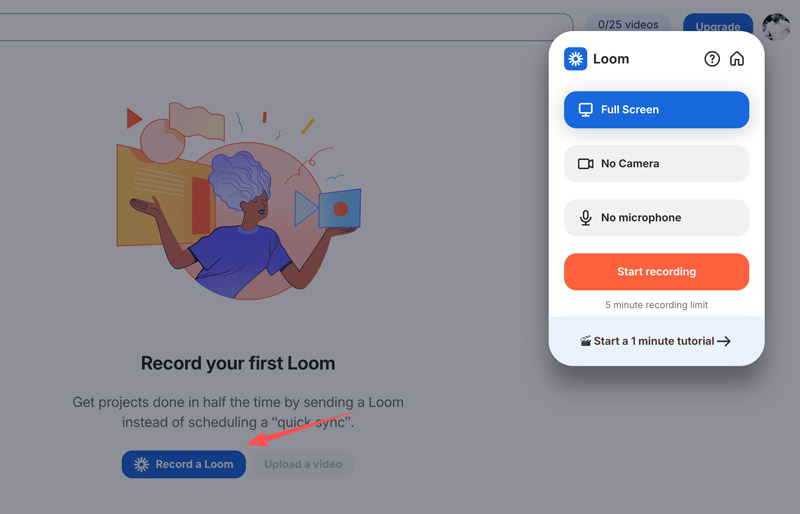
Besides Loom, there are many other similar recorders available for you to record your Mac screen, such as ScreenRec, ScreenPal, and Cap. These screen recorders offer a straightforward way to quickly start recording on your Mac or Windows laptop. However, they also come with various limitations that require you to upgrade.
Question 1. Does Windows 10 allow screen recording with sound?
Yes, Windows 10 has built-in screen recording tools and functions that can capture sound. As mentioned above, you can directly record your screen with audio using Xbox Game Bar.
Question 2. What is the best free screen recorder for Windows 11?
You should select the best recorder based on your specific needs. Start with the built-in Game Bar and test if it can fit your screen recording needs. Also, the built-in Snipping Tool in Windows provides a fast, straightforward way to capture a clip. If you often capture your computer screen and want to create serious content, OBS Studio is a good choice.
Question 3. Does Mac allow system audio recording?
The built-in screen recording tools in macOS don’t allow system audio recording. They can only capture sound from the microphone. To capture internal audio, you must rely on a third-party recording app like Aiseesoft Screen Recorder.
Conclusão
With this guide, you can learn all the necessary information to screen record on a laptop. Whether you want to capture a screen on a Windows PC or a MacBook, you can easily find suitable recorders and instructions to do that. All the recommended screen recording tools are available to use for free. Start with your preferred one to record with ease.
 9 melhores gravadores de tela para PC [lista completa de 2026]
Esta lista explora os 9 melhores softwares de gravação de tela para Windows 10/11. Recursos, prós e contras, qualidade de gravação, etc., tudo o que você precisa saber pode ser encontrado aqui!
 Uma análise detalhada dos 8 melhores gravadores de tela sem atraso
Sempre faz gravações de tela com lag? Não se preocupe. Aqui testamos 8 gravadores de tela sem lag e fazemos essa review com dados. Você pode escolher um que você goste.
 Revisão completa sobre o que é gravador de tela OBS e melhores alternativas
Desbloqueie todo o potencial do OBS Screen Recorder com nossa revisão Passo a Passo e guia de uso. Comece a gravar hoje mesmo com facilidade e eficiência para criação de conteúdo profissional.
O Aiseesoft Screen Recorder é o melhor software de gravação de tela para capturar qualquer atividade, como vídeos online, chamadas de webcam, jogos no Windows/Mac.
100% seguro. Sem anúncios.
100% seguro. Sem anúncios.

*Campo obrigatório
*Por favor, insira um e-mail válido